
Conditional Logic Steps (Commercial)
Conditional Logic Steps (Commercial)
Early Access Feature - Available in Runbook Automation 5.20.0+ (Node First strategy, nested conditionals, and substep error handlers/log filters require 6.1.0+)
Conditional Logic steps enable dynamic workflow execution based on runtime conditions. Use these steps to create intelligent automation that makes decisions during execution without requiring external scripts or complex logic.
Overview
Conditional Logic steps evaluate conditions at runtime and execute substeps only when those conditions are met. This enables workflows to branch based on:
- Job options (environment, configuration values)
- Node attributes (OS family, hostname, tags)
- Job context (project name, job name, execution user)
- Data captured from previous steps (via log filters)
Key Features
- AND/OR Logic: Combine multiple conditions with flexible grouping, with an AND/OR toggle to invert the default grouping when needed
- Multiple Operators: Equals, not equals, contains, regex matching, numeric comparisons
- Node and Workflow Types: Execute conditionally per-node or once per workflow
- Nested Conditionals: Place conditional steps inside other conditional steps for multi-level logic
- Nested Substeps: Add multiple steps that execute when conditions are met
- Debug Mode: View detailed condition evaluation in execution logs
Limitations (Current Release)
This is an Early Access feature with the following limitations:
- Ruleset Strategy: Not supported. Conditional Logic works with Sequential, Parallel, and Node First strategies.
- Substep Type Matching: Substeps must be the same type (node/workflow) as the parent conditional step.
- Step Output Requires Log Filters: To reference output from previous steps in conditions, use log filters to capture the data, then reference it using
${data.*}syntax. - Error Handlers/Log Filters on Substeps: Supported on substeps in this release. The UI for configuring them on substeps is still being finalized and will improve in a later release.
Enabling Conditional Logic
Conditional Logic is an Early Access commercial feature controlled by a feature flag.
Early Access Feature
This feature is under active development. If you encounter issues or have feedback, please report them to Rundeck support. You can disable the feature at any time by setting the feature flag to false and restarting Rundeck.
Important: If you disable the feature flag after creating jobs with conditional logic steps, those jobs will be preserved but will fail to execute until the conditional steps are removed or the feature is re-enabled.
Configuration
Add this property to rundeck-config.properties:
rundeck.feature.earlyAccessJobConditional.enabled=true
For On-Prem Installations: After adding the property, restart Rundeck for the change to take effect.
For SaaS Deployments: Once the property is set, the feature activates automatically without requiring a restart.
Understanding Conditional Step Types
Conditional Logic steps come in two types, matching Rundeck's step execution model:
Node Conditional Logic
Executes conditionally on each node that matches the job's node filter. Conditions are evaluated independently for each node based on that node's attributes.
Available Condition Fields:
- Job Context (job name, project, user)
- Job Options
- Node Attributes (hostname, OS family, tags, custom attributes)
- Data captured via log filters
Use Cases:
- Run commands only on Linux nodes: Field
${node.osFamily}equalsunix - Target specific hostnames: Field
${node.hostname}containsweb - Filter by node tags: Field
${node.tags}containsproduction
Workflow Conditional Logic
Executes conditionally once per job execution on the Rundeck server. Conditions are evaluated in a global context without node-specific variables.
Available Condition Fields:
- Job Context (job name, project, user)
- Job Options
- Data captured via log filters
Note: Node Attributes are NOT available for workflow conditional steps.
Use Cases:
- Run steps only in production environment: Field
${option.environment}equalsproduction - Skip steps for specific users: Field
${job.username}not equalsserviceaccount - Execute based on captured data: Field
${data.status}equalsready
Adding Conditional Logic Steps
Step 1: Open the Step Picker
In the Job Editor's Workflow tab:
- Click "Add a step" button
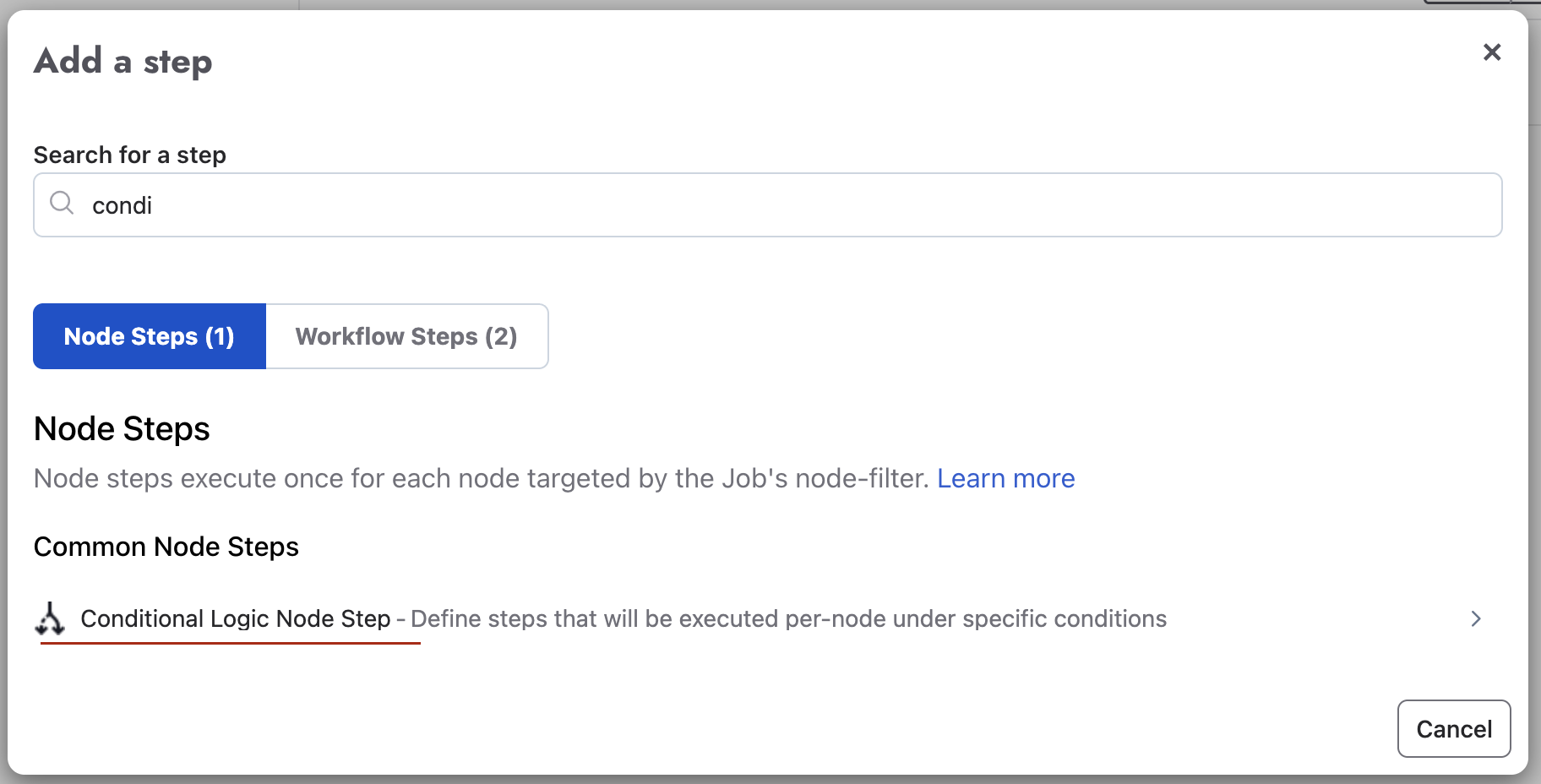
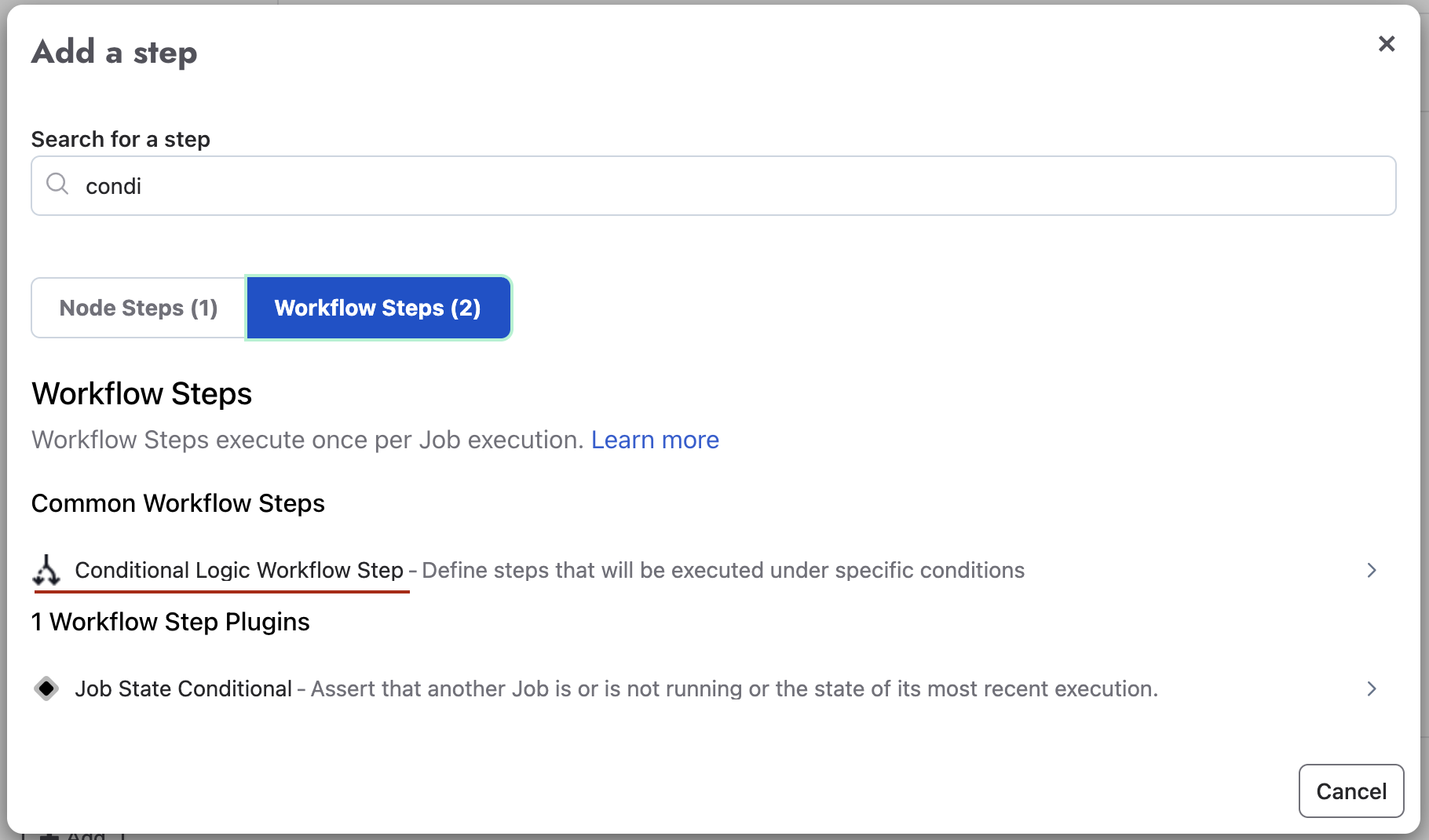
- The Early Access step picker modal opens with two tabs: Node Steps and Workflow Steps
Step 2: Select Conditional Type
- For Node Conditional Logic: Click the "Node Steps" tab, then select "Node Conditional Logic"
- For Workflow Conditional Logic: Click the "Workflow Steps" tab, then select "Workflow Conditional Logic"
The conditional step editor opens inline at the end of your workflow.
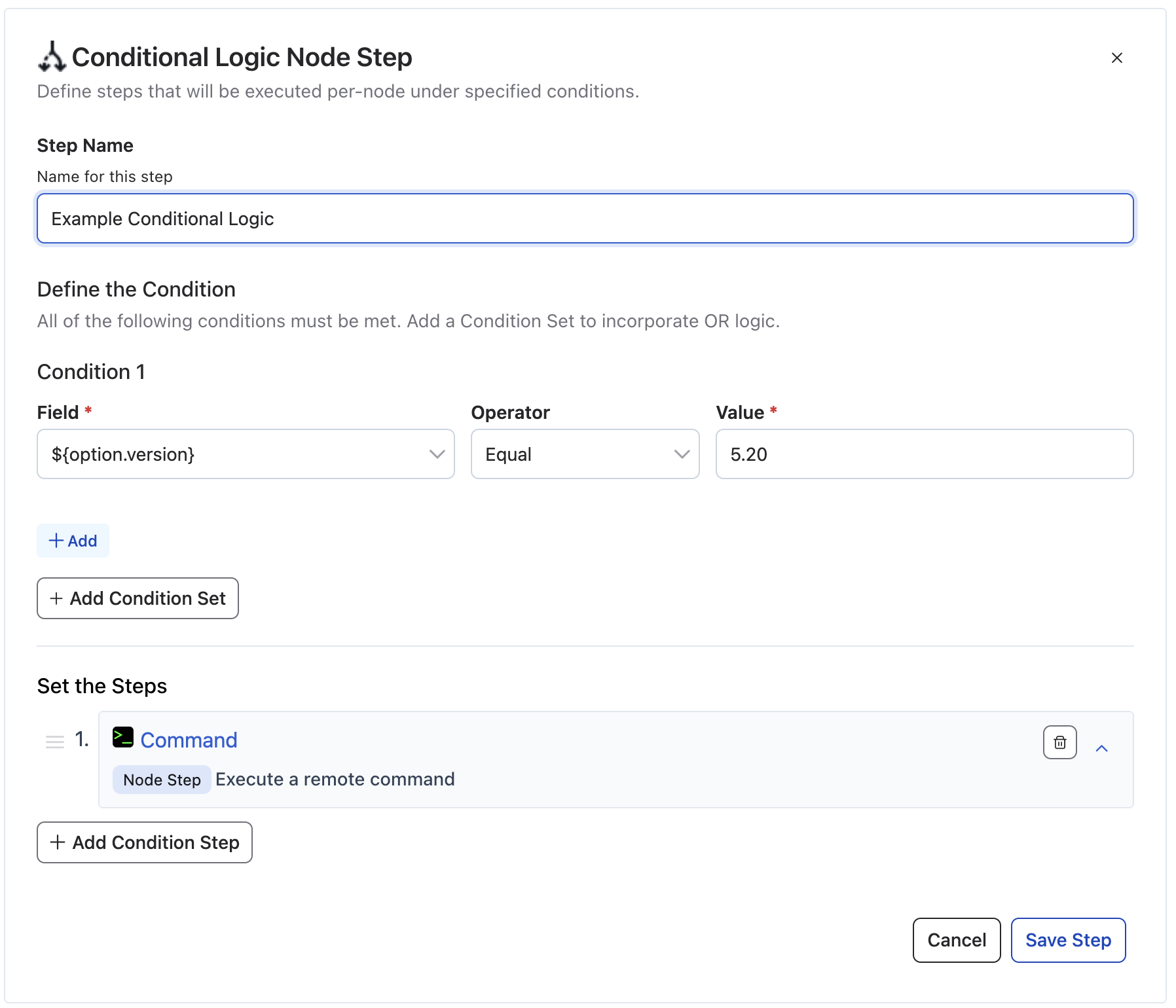
Step 3: Configure the Conditional Step
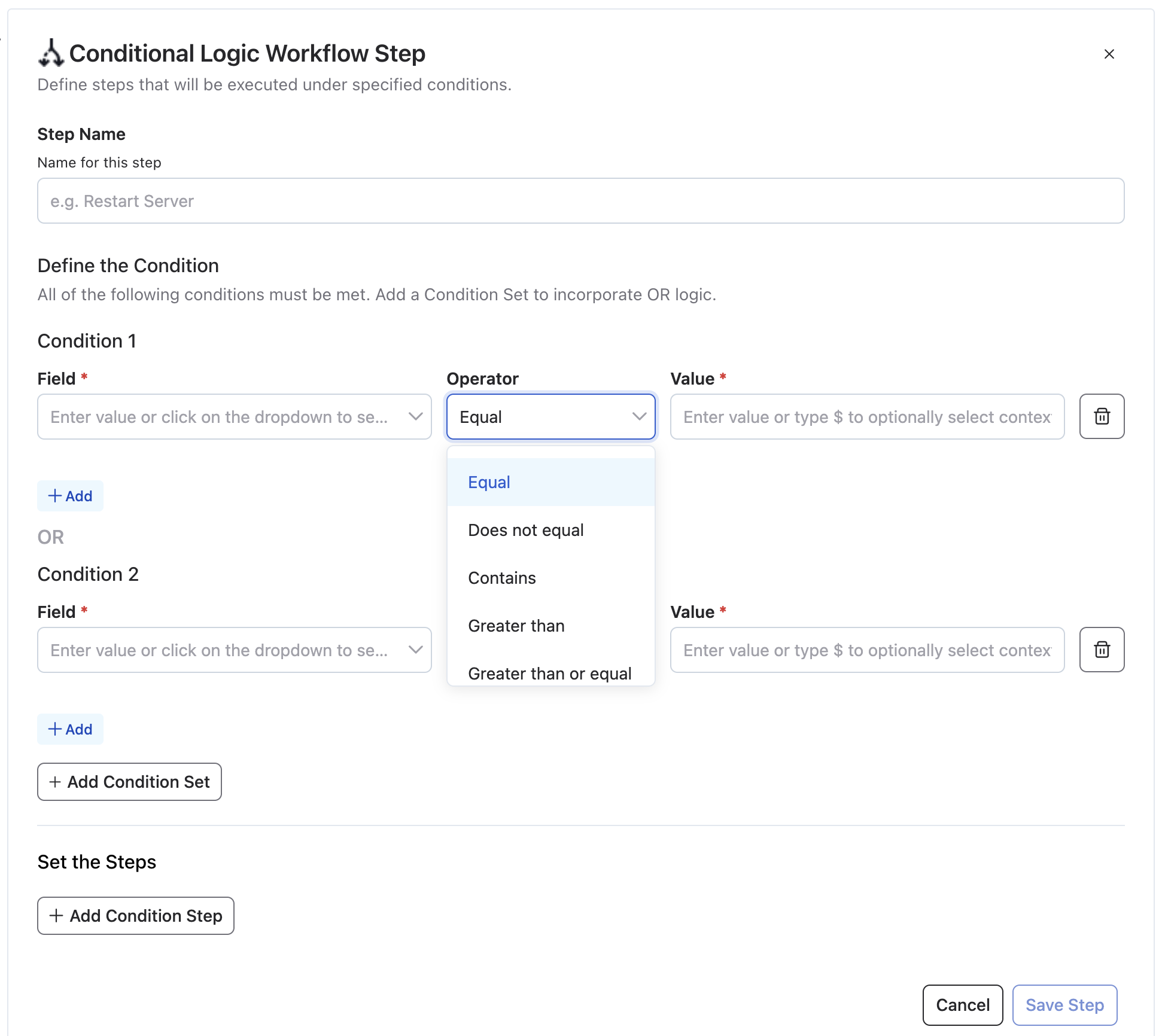
The conditional step editor has three main sections:
1. Step Name
Enter a descriptive name for this conditional step (e.g., "Check Linux Nodes", "Production Environment Only").
2. Define Conditions
Build your condition logic using the condition editor:
Adding a Single Condition:
- Field: Select what to evaluate using
${}syntax (e.g.,${node.osFamily},${option.environment},${job.project}) - Operator: Choose how to compare (equals, not equals, contains, matches, etc.)
- Value: Enter a literal value or use variable syntax like
${option.env}
Adding Multiple Conditions (AND Logic by Default):
Within a condition set, click "Add" to add another condition. By default, all conditions in a set must be true (AND logic).
Example: ${node.osFamily} equals unix AND ${node.hostname} contains web
Adding Condition Sets (OR Logic by Default):
Click "Add Condition Set" to create a new set. By default, the step executes if ANY condition set is true (OR logic).
Example:
- Set 1:
${node.osFamily} equals unixAND${node.tags} contains web - OR
- Set 2:
${node.osFamily} equals windowsAND${node.tags} contains iis
Limits:
- Maximum 5 conditions per condition set
- Maximum 5 condition sets per step
Inverting the Logic: AND/OR Toggle
By default, a Conditional Logic step evaluates AND within each condition set, OR across condition sets. Once you've added a second condition set, a dropdown appears at the last set boundary that lets you invert this: OR within each condition set, AND across condition sets.
Since Rundeck 6.2.0
The AND/OR toggle for condition sets is available starting in Rundeck 6.2.0.
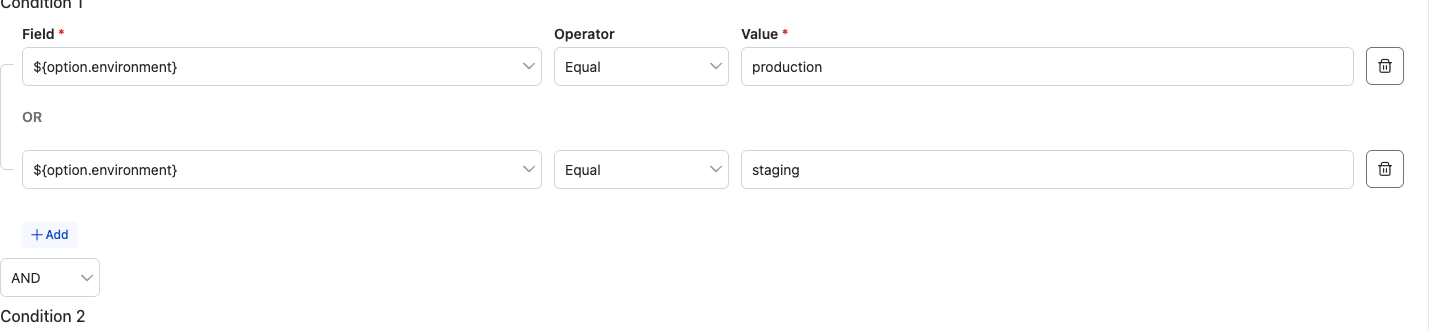
The toggle applies to the whole step, not just the boundary where it appears — it flips both the within-set and across-set operators together.
Why this matters:
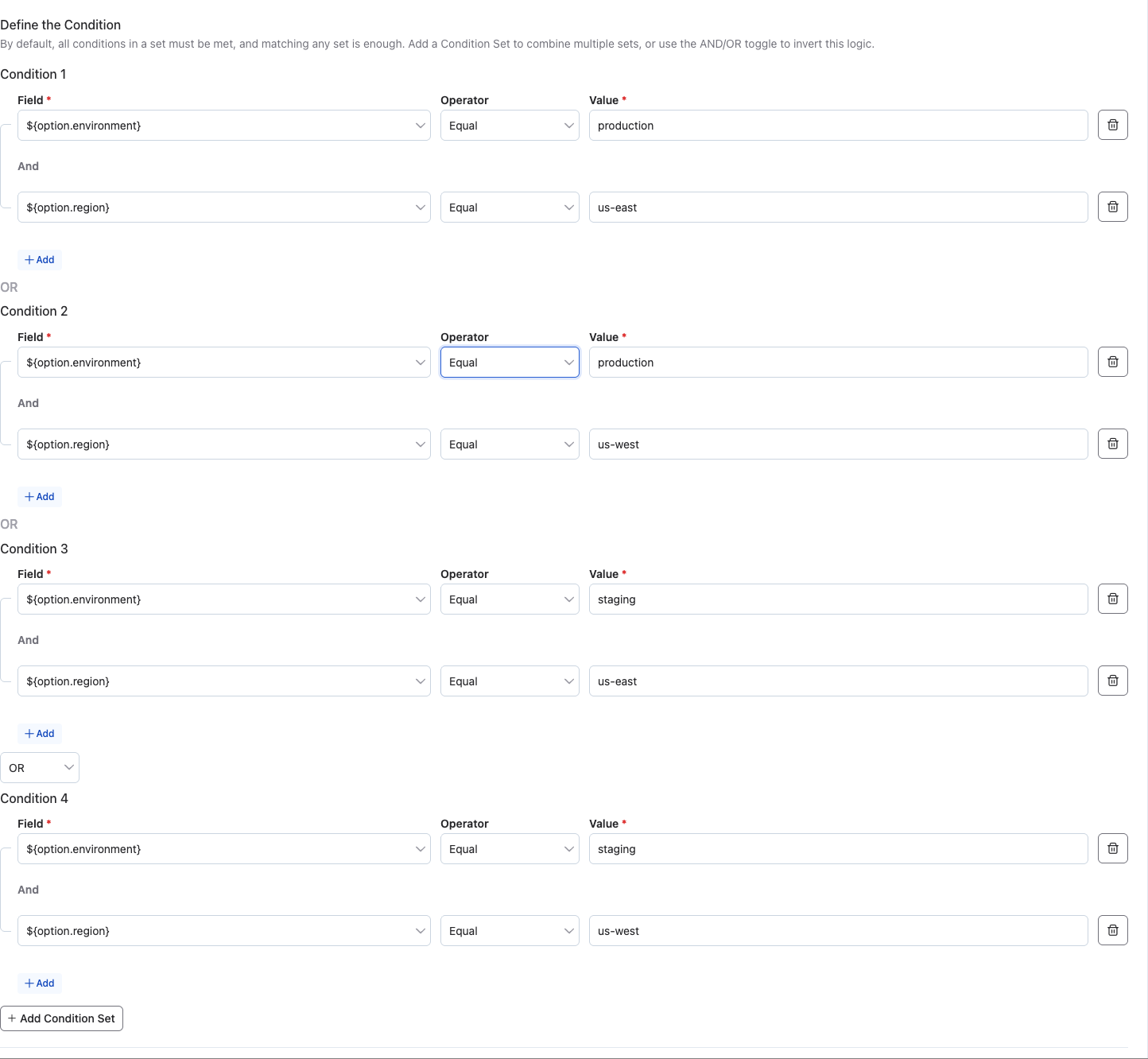
The default (AND-within/OR-across) is well suited to "match any of these profiles" logic, where each set describes a complete, self-contained case. But some conditions are naturally expressed as "all of these requirements must hold, and each requirement can be satisfied a few different ways" — which is AND-across/OR-within.
Example: Require production AND an approved region
Suppose a step should only run when the job is targeting a production-like environment and an approved region — but "production-like" and "approved region" each have more than one acceptable value:
- Requirement 1 (environment):
${option.environment}equalsproductionOR${option.environment}equalsstaging - Requirement 2 (region):
${option.region}equalsus-eastOR${option.region}equalsus-west
Modeling this with the default AND/OR grouping would require enumerating every valid combination as a separate condition set (production+us-east, production+us-west, staging+us-east, staging+us-west) — four sets instead of two, and a new set for every environment or region added later.
Toggling the logic to invert lets you express it directly as two sets, each OR'd internally, with the sets AND'd together:
- Set 1 (environment, OR within set):
${option.environment}equalsproductionOR${option.environment}equalsstaging - AND
- Set 2 (region, OR within set):
${option.region}equalsus-eastOR${option.region}equalsus-west
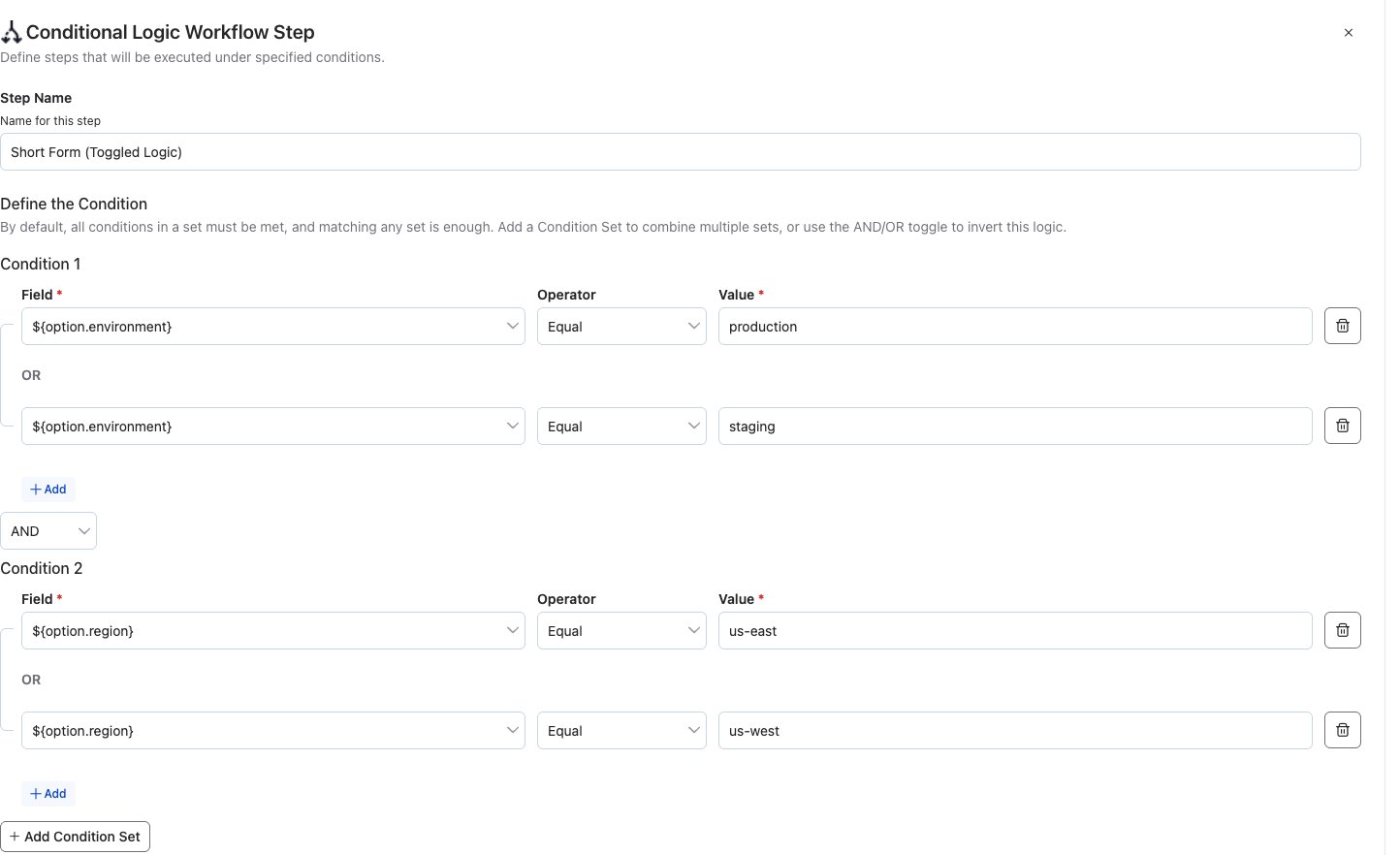
This keeps the condition sets aligned with the business requirements (environment, region) rather than with every combination of values, and it stays maintainable as acceptable values are added or removed.
3. Set the Steps
Add substeps that execute when conditions are met:
- Click "+ Add Condition Step"
- The step picker modal opens (same as adding regular steps)
- Select and configure the substep
- Repeat to add multiple substeps
Important: Substeps must match the parent type:
- Node Conditional Logic → Only Node Steps as substeps
- Workflow Conditional Logic → Only Workflow Steps as substeps
Step 4: Save the Conditional Step
Click "Save Step" to add the conditional step to your workflow.
Click "Cancel" to discard changes.
Available Operators
The following operators are available for condition evaluation:
| Operator | Description | Example |
|---|---|---|
equals | Exact match (case-sensitive) | Field: ${node.osFamily} Value: unix |
not equals | Does not match | Field: ${option.env} Value: dev |
contains | Value contains substring | Field: ${node.hostname} Value: web |
matches | Regular expression match | Field: ${node.hostname} Value: ^web[0-9]+$ |
greater than | Numeric comparison | Field: ${option.count} Value: 5 |
less than | Numeric comparison | Field: ${option.timeout} Value: 60 |
Using Variables in Conditions
Field References
Fields must use ${} syntax to reference data sources using dot notation:
Job Context:
${job.name}- Job name${job.project}- Project name${job.username}- User executing the job${job.id}- Job UUID
Job Options:
${option.[name]}- Value of a job option (e.g.,${option.environment})
Node Attributes (Node Conditional Logic only):
${node.hostname}- Node hostname${node.name}- Node name${node.osFamily}- Operating system family (unix, windows)${node.osName}- Operating system name${node.tags}- Node tags (comma-separated)${node.[attribute]}- Any custom node attribute
Data Variables:
${data.[name]}- Data captured via log filters (e.g.,${data.status})
Value References
Values can be either literal strings/numbers or variable references using ${} syntax:
Literal Values:
Field: ${node.osFamily}   Operator: equals   Value: unix
Field: ${option.count}    Operator: greater than   Value: 10
Field: ${node.hostname}   Operator: contains   Value: web
Variable References:
Field: ${node.hostname}   Operator: equals   Value: ${option.target_host}
Field: ${data.status}     Operator: equals   Value: ${option.expected_status}
Autocomplete Support:
When typing in the Value field, an autocomplete menu displays available variables grouped by type:
- Job tab: Job context variables
- Options tab: Available job options
Managing Conditional Steps
Editing Conditional Steps
- Click the Edit button on the conditional step card
- The inline editor opens with current configuration
- Modify conditions, substeps, or step name
- Click "Save" to apply changes or "Cancel" to discard
Reordering Steps
Conditional steps can be reordered like any other workflow step:
- Hover over the conditional step card
- Click and drag the handle icon (⋮⋮) to move the step
- A blue horizontal bar shows the drop position
- Release to place the step in the new position
Use "Undo" above the workflow to revert reordering.
Duplicating Steps
Click "Duplicate" on a conditional step card to create a copy with the same configuration. The duplicate appears immediately after the original step.
Deleting Steps
Click "Delete" on a conditional step card to remove it from the workflow. Use "Undo" to restore a deleted step.
Execution Behavior
Condition Evaluation
When a job executes:
- The workflow engine evaluates conditions for each conditional step
- For Node Conditional Logic: Conditions are evaluated independently for each node
- For Workflow Conditional Logic: Conditions are evaluated once at the workflow level
- If conditions are true, substeps execute; if false, substeps are skipped
Debug Mode
Enable Debug logging level when running a job to see detailed condition evaluation.
Debug output shows:
- Each condition being evaluated
- Resolved values for variables
- Whether each condition passed or failed
- Whether the overall condition set was true or false
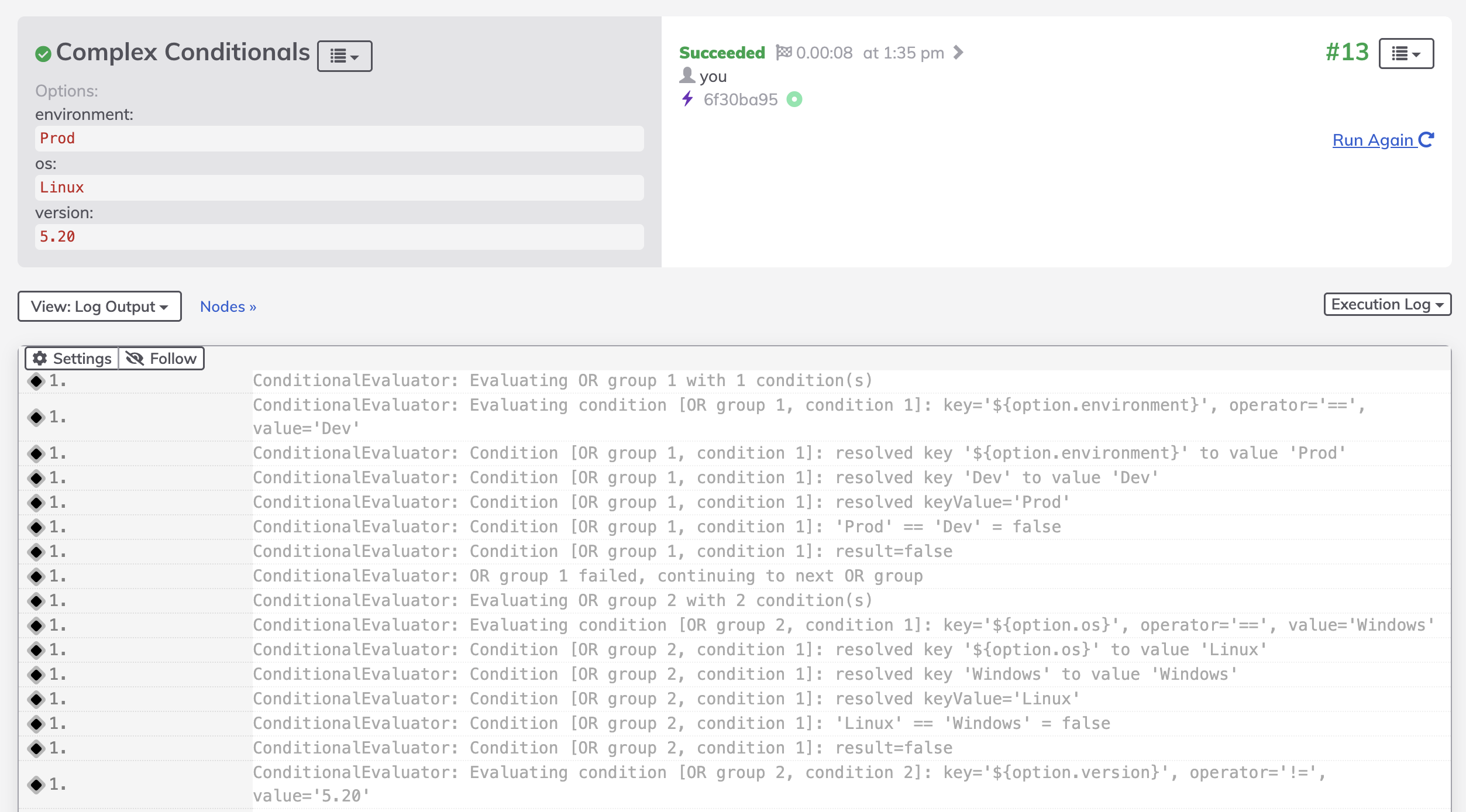
Execution Log Display
In the execution log:
- Conditions Met: Substeps appear in the log and execute normally
- Conditions Not Met: A log message indicates the conditional step was skipped, and substeps do not appear
Workflow Strategies
Conditional Logic steps work with Sequential, Parallel, and Node First strategies (not Ruleset):
Sequential Strategy (Step First):
- Evaluates each conditional step across nodes before moving to the next step
- Substeps execute on matching nodes according to sequential ordering
Parallel Strategy:
- All steps (including conditionals) run in parallel
- Conditional evaluation happens concurrently across nodes
- Substeps execute in parallel when conditions are met
Node First Strategy:
- Runs the full workflow on each node before moving to the next node
- Conditions are evaluated as the workflow progresses on each node
- Substeps execute on that node when conditions are met
Advanced Scenarios
Complex Condition Logic
Combine AND/OR logic for sophisticated conditions:
Example: Linux web servers OR Windows IIS servers
Condition Set 1 (Linux):
- Field:
${node.osFamily}Operator:equalsValue:unix - Field:
${node.tags}Operator:containsValue:web
OR
Condition Set 2 (Windows):
- Field:
${node.osFamily}Operator:equalsValue:windows - Field:
${node.tags}Operator:containsValue:iis
See Inverting the Logic: AND/OR Toggle above for cases where the sets should be AND'd together instead, with OR logic within each set.
Nested Conditionals
You can place a Conditional Logic step inside another Conditional Logic step to build multi-level branching:
- Add a parent Conditional Logic step and define its conditions
- Click "+ Add Condition Step" and select another Conditional Logic step as a substep
- Configure the nested conditional's conditions and its own substeps
- When the parent condition is met, the nested conditional evaluates independently
Example: Environment gate, then OS-specific commands
- Workflow Conditional Logic:
${option.environment}equalsproduction- Nested Node Conditional Logic:
${node.osFamily}equalsunix- Substeps: Linux production commands
- Nested Node Conditional Logic:
${node.osFamily}equalswindows- Substeps: Windows production commands
- Nested Node Conditional Logic:
You can also use Job Reference steps as substeps when you want to reuse a shared job that contains its own conditionals.
Environment-Based Workflows
Use job options with conditionals to create environment-aware workflows:
Job Options:
environment(choice: dev, staging, production)
Conditional Steps:
- Workflow Conditional Logic: Field
${option.environment}equalsproduction- Substeps: Send notification, require approval, backup database
- Workflow Conditional Logic: Field
${option.environment}not equalsproduction- Substeps: Skip approval, use test credentials
Node Attribute Filtering
Target specific nodes without modifying node filters:
Example: Run commands only on database nodes
Node Conditional Logic:
- Condition: Field
${node.tags}Operator:containsValue:database - Substeps: Database maintenance commands
This allows the job to have a broader node filter but selectively execute steps.
Troubleshooting
Conditional Step Not Available
Problem: Conditional Logic steps don't appear in the step picker.
Solutions:
- Verify
rundeck.feature.earlyAccessJobConditional.enabled=trueinrundeck-config.properties - Restart Rundeck after enabling the feature flag
- Check workflow strategy is Sequential, Parallel, or Node First (Ruleset is not supported)
Conditions Not Evaluating Correctly
Problem: Substeps execute when they shouldn't (or vice versa).
Solutions:
- Enable Debug mode when running the job to see condition evaluation details
- Verify option names match exactly (case-sensitive)
- For node attributes, confirm the attribute exists on target nodes
- Important: Fields must use
${}syntax (e.g.,${node.osFamily}notnode.osFamily) - Values can be literal or use
${}syntax for variables - Use
containsinstead ofequalsfor partial matching
Note on Step Output:
- Use
${data.*}to reference data captured via log filters from previous steps - To use output from previous steps: add a log filter (e.g., Key Value Data) to capture the output, then reference it using
${data.variableName}in your conditions
Cannot Add Substeps
Problem: Cannot add substeps or wrong substep types appear.
Solutions:
- Ensure substeps match parent type (Node substeps for Node Conditional, Workflow substeps for Workflow Conditional)
- Check that you haven't exceeded the maximum number of substeps (no hard limit, but consider workflow complexity)
Validation Errors
Problem: Cannot save conditional step.
Solutions:
- Ensure all required fields are filled (Field and Value are required)
- At least one condition must be defined
- Check for syntax errors in regex patterns (for
matchesoperator) - Important: Fields must use
${}syntax - verify syntax like${option.name}not$option.name
Import/Export Issues
Problem: Cannot import job with conditionals.
Solutions:
- Conditional Logic is supported in JSON and YAML formats only
- XML format is NOT supported - attempting to import XML with conditionals will fail
- When exporting, use JSON or YAML format
- Ensure the feature flag is enabled before importing jobs with conditionals
Job Definition Format
Conditional Logic steps are supported in JSON and YAML job definition formats.
Format Support
| Format | Supported | Notes |
|---|---|---|
| JSON | ✅ Yes | Recommended format |
| YAML | ✅ Yes | Recommended format |
| XML | ❌ No | Will cause errors if job contains conditionals |
Structure
Conditional steps use the following structure in job definitions:
JSON Example:
[
  {
    "name": "Example Job",
    "loglevel": "INFO",
    "sequence": {
      "commands": [
        {
          "type": "conditional.logic",
          "nodeStep": true,
          "description": "Check Linux Nodes",
          "invertLogic": false,
          "conditionGroups": [
            {
              "conditions": [
                {
                  "field": "${node.osFamily}",
                  "operator": "equals",
                  "value": "unix"
                }
              ]
            }
          ],
          "steps": [
            {
              "exec": "echo 'Running on Linux'"
            }
          ]
        }
      ]
    }
  }
]
YAML Example:
- name: Example Job
  loglevel: INFO
  sequence:
    commands:
      - type: conditional.logic
        nodeStep: true
        description: Check Linux Nodes
        invertLogic: false
        conditionGroups:
          - conditions:
              - field: "${node.osFamily}"
                operator: equals
                value: "unix"
        steps:
          - exec: echo 'Running on Linux'
Import Validation
When importing job definitions:
- Feature flag required: Jobs with
type: conditional.logicsteps require the feature flag to be enabled - Strategy validation: Import will fail if workflow strategy is Ruleset
- Substep type validation: Import will fail if substeps don't match parent type (node/workflow)
Error Example:
Import failed: Job contains conditional logic steps but feature
'rundeck.feature.earlyAccessJobConditional.enabled' is not enabled.
Export Restrictions
When exporting jobs:
XML Export:
- Attempting to export a job with conditional steps to XML format will fail with an error
- Error message:
XML format does not support conditional logic steps. Use JSON or YAML format.
JSON/YAML Export:
- Jobs with conditionals export successfully
- All condition definitions, substeps, and configuration are preserved
Best Practices
Condition Design
- Keep conditions simple: Prefer multiple simple conditions over complex regex patterns
- Use descriptive step names: Help other users understand what the conditional does
- Test with debug mode: Always verify condition evaluation before production use
- Document expected behavior: Use job description to explain conditional logic
Performance Considerations
- Limit condition complexity: Many conditions or complex regex can impact performance
- Avoid unnecessary conditionals: If all nodes should execute, don't add conditionals
- Use node filters first: Filter nodes at the job level, use conditionals for fine-grained control
Maintainability
- Consistent naming: Use standard naming conventions for options and data variables
- Keep nesting readable: Prefer shallow nested conditionals; use Job References when the same branching logic should be reused across jobs
- Group related substeps: Keep logically related steps together within a conditional
- Comment your logic: Add notes in job description explaining complex conditional workflows
Related Documentation
- Job Workflows - Overview of workflow execution
- Job Variables - Complete variable reference
- Workflow Strategies - Strategy details
- Job Options - Creating and using job options
- Log Filters - Capturing data for use in conditions
- Document Format Reference - Job definition formats