
Execution History Cleaner
Execution History Cleaner
Overview
The Execution History Cleaner automatically removes old execution records from your Rundeck projects based on configurable retention policies. This feature runs as a scheduled job within each project and helps you maintain a clean, performant execution history.
Recommended Approach
The Execution History Cleaner is the recommended way to clean Activity history in Rundeck. It is specifically optimized for performance against both the database and CPU, making it far more efficient than using individual API calls to delete executions one at a time.
What Gets Cleaned
When an execution is deleted by the cleaner, the following data is removed:
Database Records
- Execution records
- Execution reports
- Referenced execution data
- File upload records
- Retry execution references (cleared)
File System
- Local log files
- Partial log files
- State files
Remote Storage
- Remote log files (if log storage is configured)
Configuration Settings
Access the Execution History Cleaner settings in Project Settings > Edit Configuration.
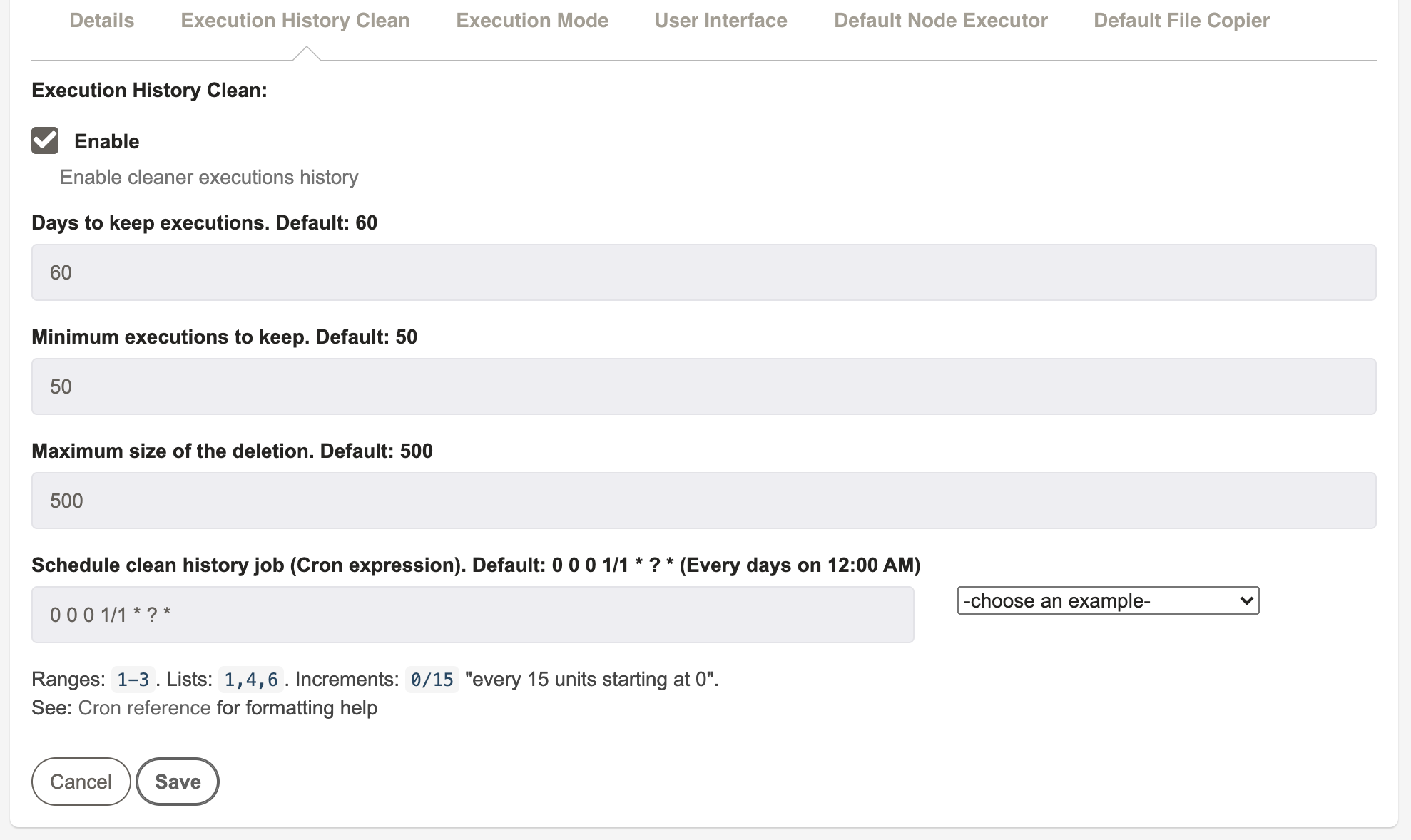
Enable Execution History Cleaner
Property: project.execution.history.cleanup.enabled
Default: Disabled
Description: Master switch to enable or disable the automatic cleanup job for this project.
- When enabled, the cleaner job runs on the configured schedule
- When disabled, no automatic cleanup occurs (existing schedule is removed)
Retention Days
Property: project.execution.history.cleanup.retention.days
Default: 60 days
Description: Maximum age of executions to keep. Executions older than this many days will be candidates for deletion.
How It Works:
- The cleaner searches for executions where
dateCompletedis older than the specified number of days - For example, if set to
60, executions completed more than 60 days ago are eligible for deletion - Only completed executions are considered (running executions are never deleted)
Recommended Values:
- 30-60 days - For high-volume environments with frequent executions
- 60-90 days - Standard retention for most use cases
- 90-180 days - Extended retention for compliance or audit requirements
Tips
Consider your organization's audit requirements and available disk space when setting this value.
Minimum Executions to Keep
Property: project.execution.history.cleanup.retention.minimum
Default: 50 executions
Description: Minimum number of total executions to always keep in the project, regardless of age. This ensures you always maintain some execution history for reference.
How It Works:
- The cleaner finds all executions older than the Retention Days
- Before deleting, it counts the total executions in the project
- It calculates:
Remaining = Total - Candidates for Deletion - If
Remainingwould be less than this minimum, it reduces the number of deletions - The oldest executions are deleted first, preserving the most recent ones
Examples:
Example 1: Minimum Not Reached
- Total executions: 100
- Retention Days: 60 (45 executions are older)
- Minimum to Keep: 50
- Result: Delete all 45 old executions (remaining = 100 - 45 = 55, which is > 50) ✅
Example 2: Minimum Enforced
- Total executions: 100
- Retention Days: 60 (60 executions are older)
- Minimum to Keep: 50
- Result: Delete only 50 executions (remaining = 100 - 50 = 50, exactly at minimum) ⚠️
Example 3: Below Minimum
- Total executions: 40
- Retention Days: 60 (20 executions are older)
- Minimum to Keep: 50
- Result: Delete nothing (total < minimum, preserve all) 🛑
Recommended Values:
- 50-100 - For projects with regular job executions
- 100-500 - For projects requiring extensive execution history
- Consider: Audit requirements, troubleshooting needs, compliance policies
Important
This setting acts as a safety net. Even if executions are old, the cleaner will preserve this minimum number to ensure you always have some history.
Maximum Deletion Size
Property: project.execution.history.cleanup.batch
Default: 500 executions
Description: Maximum number of executions to delete in a single cleanup run. This controls batch size to balance progress with database load.
How It Works:
- The cleaner limits each run to delete at most this many executions
- If more executions meet the deletion criteria, they will be deleted in subsequent runs
- Helps prevent long-running database transactions
- Ensures the cleanup job completes in a reasonable time
Impact on Performance:
| Batch Size | Database Impact | Time per Run | Progress |
|---|---|---|---|
| < 100 | Very low | Very fast | Slow (many runs needed) |
| 500 (default) | Low | Fast | Good balance ⭐ |
| 500-1000 | Moderate | Moderate | Fast progress |
| > 5000 | High | Slow | Very fast (risky) |
Recommended Values:
- 500 - Default, good for most environments
- 1000-2000 - Large environments with powerful databases
- 100-250 - Smaller environments or during business hours
Best Practice
Start with the default (500) and adjust based on your environment:
- If cleanup runs are too slow, decrease the batch size
- If you have a large backlog and a powerful database, you can increase it
- Monitor database performance after changes
Schedule (Cron Expression)
Property: project.execution.history.cleanup.schedule
Default: 0 0 0 1/1 * ? * (Daily at midnight)
Description: Cron expression that determines when the cleanup job runs. This allows you to schedule cleanup during low-usage periods.
How It Works:
- Uses standard Quartz Cron syntax
- The job runs on the schedule defined by this expression
- Rundeck validates the cron expression when you save the configuration
- In cluster mode, only one server runs the cleanup per project
Common Schedules:
| Schedule | Cron Expression | Description |
|---|---|---|
| Daily at midnight | 0 0 0 * * ? | Default, runs once per day |
| Daily at 2 AM | 0 0 2 * * ? | During typical low-usage hours |
| Twice daily | 0 0 0,12 * * ? | Midnight and noon |
| Weekly (Sunday 2 AM) | 0 0 2 ? * SUN | Once per week |
| Every 6 hours | 0 0 */6 * * ? | Four times per day |
Choosing a Schedule:
Consider:
- Database load - Schedule during low-activity periods
- Disk space - More frequent runs if space is limited
- Retention needs - Less frequent if long retention is acceptable
- User impact - Avoid peak usage times
Recommended:
- Most environments: Daily at 2-4 AM local time
- High volume: Multiple times per day (every 6-12 hours)
- Low volume: Weekly during maintenance windows
Cron Expression Helper
The Project Settings UI includes a cron expression helper with:
- Real-time validation
- Example expressions dropdown
- Next execution time preview
How the Cleaner Works
Cleanup Process Flow
- Schedule Trigger - Job runs at the configured cron schedule
- Find Candidates - Search for executions older than Retention Days
- Apply Batch Limit - Limit to Maximum Deletion Size
- Check Minimum - Ensure Minimum Executions to Keep is maintained
- Delete Executions - Remove executions and all related data
- Log Results - Report how many executions were deleted
Interaction Between Settings
The settings work together to control cleanup behavior:
┌─────────────────────────────────────────────────────────────────┐
│ 1. Find executions older than [Retention Days]                 │
│    ↓                                                             │
│ 2. Limit to [Maximum Deletion Size] candidates                  │
│    ↓                                                             │
│ 3. Check: Would deletion leave < [Minimum to Keep]?             │
│    ├─ YES → Reduce deletion count to maintain minimum           │
│    └─ NO → Proceed with deletion                                │
│    ↓                                                             │
│ 4. Delete executions and all related data                       │
│    ↓                                                             │
│ 5. Wait for next [Schedule] trigger                             │
└─────────────────────────────────────────────────────────────────┘
Safety Features
The cleaner includes multiple safeguards:
- ✅ Never deletes running executions - Only completed executions
- ✅ Respects minimum retention - Always keeps minimum number of executions
- ✅ Batch processing - Prevents overwhelming the database
- ✅ Comprehensive cleanup - Removes all related data (no orphans)
- ✅ Cluster-safe - Only one server processes each project in cluster mode
Monitoring and Verification
Check Cleanup Job Status
View the cleanup job's activity in the Rundeck logs:
Key Log Messages:
INFO: Initializing cleaner execution history job from server {uuid}
INFO: Max days to keep: 60
INFO: Minimum executions to keep: 50
INFO: Maximum size of deletions: 500
INFO: found 45 executions
INFO: Executions to delete: [123, 124, 125, ...]
INFO: Deleted 45 of 45 executions
Verify Configuration
Check your project's configuration in Project Settings > Edit Configuration or view project.properties:
project.execution.history.cleanup.enabled=true
project.execution.history.cleanup.retention.days=60
project.execution.history.cleanup.retention.minimum=50
project.execution.history.cleanup.batch=500
project.execution.history.cleanup.schedule=0 0 2 * * ?
Count Executions Eligible for Deletion
To see how many executions would be deleted in the next run, check the Activity page:
- Go to Activity
- Filter by date range (executions older than your Retention Days)
- The count shows executions that are candidates for cleanup
Best Practices
Initial Configuration
When setting up the cleaner for the first time:
- Start conservative - Use higher retention days and minimum execution values
- Monitor the first few runs - Check logs to ensure expected behavior
- Adjust gradually - Decrease retention if needed after observing patterns
- Schedule during off-hours - Minimize impact on active users
Large Backlog Cleanup
If you have a large backlog of old executions:
- Increase batch size temporarily - e.g., 1000-2000 (if database can handle it)
- Run more frequently - Multiple times per day until backlog is cleared
- Monitor database performance - Watch for slow queries or locks
- Return to normal settings - Once backlog is cleared
Compliance and Audit
For environments with compliance requirements:
- Document retention policy - Align settings with compliance requirements
- Set appropriate minimums - Ensure audit trail is maintained
- Monitor deletion logs - Keep records of what was deleted and when
- Consider backups - Archive execution data before deletion if required
- Use longer retention - 90-180 days for industries with audit requirements
Performance Optimization
To optimize cleanup performance:
- Schedule during low usage - 2-4 AM local time is typically ideal
- Adjust batch size - Balance progress vs. database load
- Monitor database - Watch for impact on other operations
- Use appropriate retention - Don't keep more history than needed
Troubleshooting
Job Not Running
Symptoms: No deletions occurring, no log messages
Check:
- Is the cleaner enabled? (
project.execution.history.cleanup.enabled=true) - Is the cron expression valid? Check for validation errors in Project Settings
- Is the schedule reached? Verify the current time matches the cron schedule
- In cluster mode, check if another server acquired the job lock
No Executions Being Deleted
Symptoms: Job runs but reports 0 deletions
Possible Causes:
- No executions old enough - No executions exceed the Retention Days
- Below minimum threshold - Total executions < Minimum to Keep setting
- All executions are running - Running executions are never deleted
- Retention days too high - Lower the retention days setting
Solution: Review Activity page to see execution ages and counts
Partial Deletions
Symptoms: Some executions deleted, but not all expected
Possible Causes:
- Batch size limit reached - Maximum Deletion Size prevents more per run
- Minimum retention enforced - Cleaner stopped to maintain minimum
- Some executions failed to delete - Check logs for specific errors
Solution:
- Wait for next scheduled run (more will be deleted)
- Check logs for specific execution deletion failures
- Verify file system and database permissions
Job Running Too Long
Symptoms: Cleanup job takes excessive time, impacts performance
Solution:
- Reduce batch size - Lower Maximum Deletion Size (e.g., 250)
- Increase frequency - Run more often with smaller batches
- Check database performance - Look for slow queries or locks
- Review remote storage - Check if log deletion is slow
Disabling the Cleaner
To disable automatic execution cleanup:
- Go to Project Settings > Edit Configuration
- Uncheck Enable Execution History Cleaner
- Save the configuration
The scheduled job will be removed, and no automatic cleanup will occur. Existing executions are preserved.
API Configuration
You can also configure the Execution History Cleaner via the Rundeck API:
curl -X PUT \
  -H "Content-Type: application/json" \
  -H "X-Rundeck-Auth-Token: $TOKEN" \
  -d '{
    "project.execution.history.cleanup.enabled": "true",
    "project.execution.history.cleanup.retention.days": "90",
    "project.execution.history.cleanup.retention.minimum": "100",
    "project.execution.history.cleanup.batch": "500",
    "project.execution.history.cleanup.schedule": "0 0 2 * * ?"
  }' \
  https://rundeck.example.com/api/43/project/MyProject/config
Related Documentation
- Project Settings - General project configuration
- Activity - View execution history
- Executions API - Programmatic execution management