
Conditional Logic Steps (Commercial)
Conditional Logic Steps (Commercial)
Generally Available in Runbook Automation 6.3.0
Conditional Logic steps are now Generally Available and enabled by default starting in Runbook Automation 6.3.0. Earlier releases (5.20.0–6.2.x) offered Conditional Logic as an Early Access feature behind the rundeck.feature.earlyAccessJobConditional.enabled flag.
Conditional Logic steps enable dynamic workflow execution based on runtime conditions. Use these steps to create intelligent automation that makes decisions during execution without requiring external scripts or complex logic.
Overview
Conditional Logic steps evaluate conditions at runtime and execute substeps only when those conditions are met. This enables workflows to branch based on:
- Job options (environment, configuration values)
- Prior step outputs (status, state, IDs, or counts exposed by earlier steps)
- Node attributes (OS family, hostname, tags)
- Job context (project name, job name, execution user)
- Data captured from previous steps (via log filters)
Key Features
- AND/OR Logic: Combine multiple conditions with flexible grouping, with an AND/OR toggle to invert the default grouping when needed
- Prior Step Outputs: Reference outputs produced by earlier workflow or node steps directly from the condition editor, with automatic reference validation and reorder protection
- Multiple Operators: Equals, not equals, contains, regex matching, numeric comparisons
- Node and Workflow Types: Execute conditionally per-node or once per workflow
- Nested Conditionals: Place a conditional step one level inside another conditional step
- Nested Substeps: Add multiple steps that execute when conditions are met
- Debug Mode: View detailed condition evaluation in execution logs
Limitations
Conditional Logic has the following limitations:
- Ruleset Strategy: Not supported. Conditional Logic works with Sequential, Parallel, and Node First strategies.
- Substep and Reference Type Matching: Substeps must match the type (node or workflow) of the parent conditional step, and conditions can only reference prior steps of the same type.
- Conditional Nesting Depth: A parent conditional can contain a nested conditional, but the nested conditional cannot contain another conditional.
Enabling or Disabling Conditional Logic
Starting in Runbook Automation 6.3.0, Conditional Logic is enabled by default. No configuration change is required on 6.3.0 or later.
Disabling Conditional Logic
You can disable Conditional Logic at any time by setting rundeck.feature.earlyAccessJobConditional.enabled=false and restarting Rundeck.
Important: If you disable the feature flag after creating jobs with conditional logic steps:
- Existing jobs with conditional logic steps will fail to execute until the conditional steps are removed or the feature is re-enabled.
- Opening a job in the Job Editor that contains conditional logic steps (or a direct Job Reference step pointing to a job with conditional logic steps) strips those steps from the workflow editor view and displays a "Conditional logic steps removed" warning banner. Saving the job in that state removes the steps permanently.
Configuration
In Runbook Automation 5.20.0 through 6.2.x, enable the feature in rundeck-config.properties:
rundeck.feature.earlyAccessJobConditional.enabled=true
In Runbook Automation 6.3.0+, the property defaults to true. To disable the feature:
rundeck.feature.earlyAccessJobConditional.enabled=false
For Self-Hosted Installations: Restart Rundeck after changing the property in rundeck-config.properties.
For SaaS Deployments: Conditional Logic is enabled by default.
Understanding Conditional Step Types
Conditional Logic steps come in two types, matching Rundeck's step execution model:
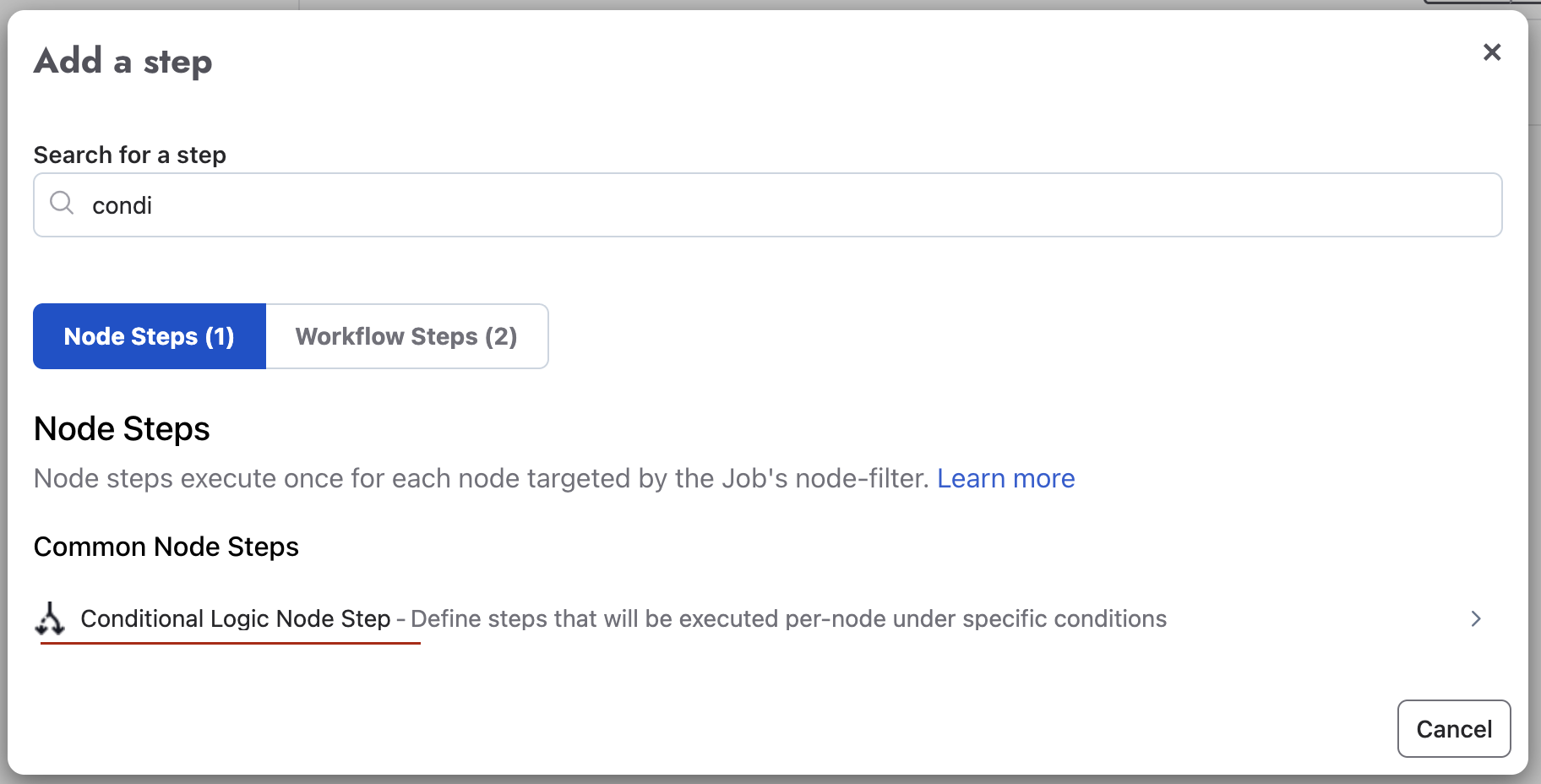
Node Conditional Logic
Executes conditionally on each node that matches the job's node filter. Conditions are evaluated independently for each node based on that node's attributes.
Available Condition Fields:
- Job Context (job name, project, user)
- Prior Steps (outputs exposed by earlier Node Steps)
- Node Attributes (hostname, OS family, tags, custom attributes)
- Job Options
- Data captured via log filters
Use Cases:
- Run commands only on Linux nodes: Field
${node.osFamily}equalsunix - Target specific hostnames: Field
${node.hostname}containsweb - Filter by node tags: Field
${node.tags}containsproduction - Branch on a prior node step's result: Field
Run Sensu Check - checkStatusequals0
Workflow Conditional Logic
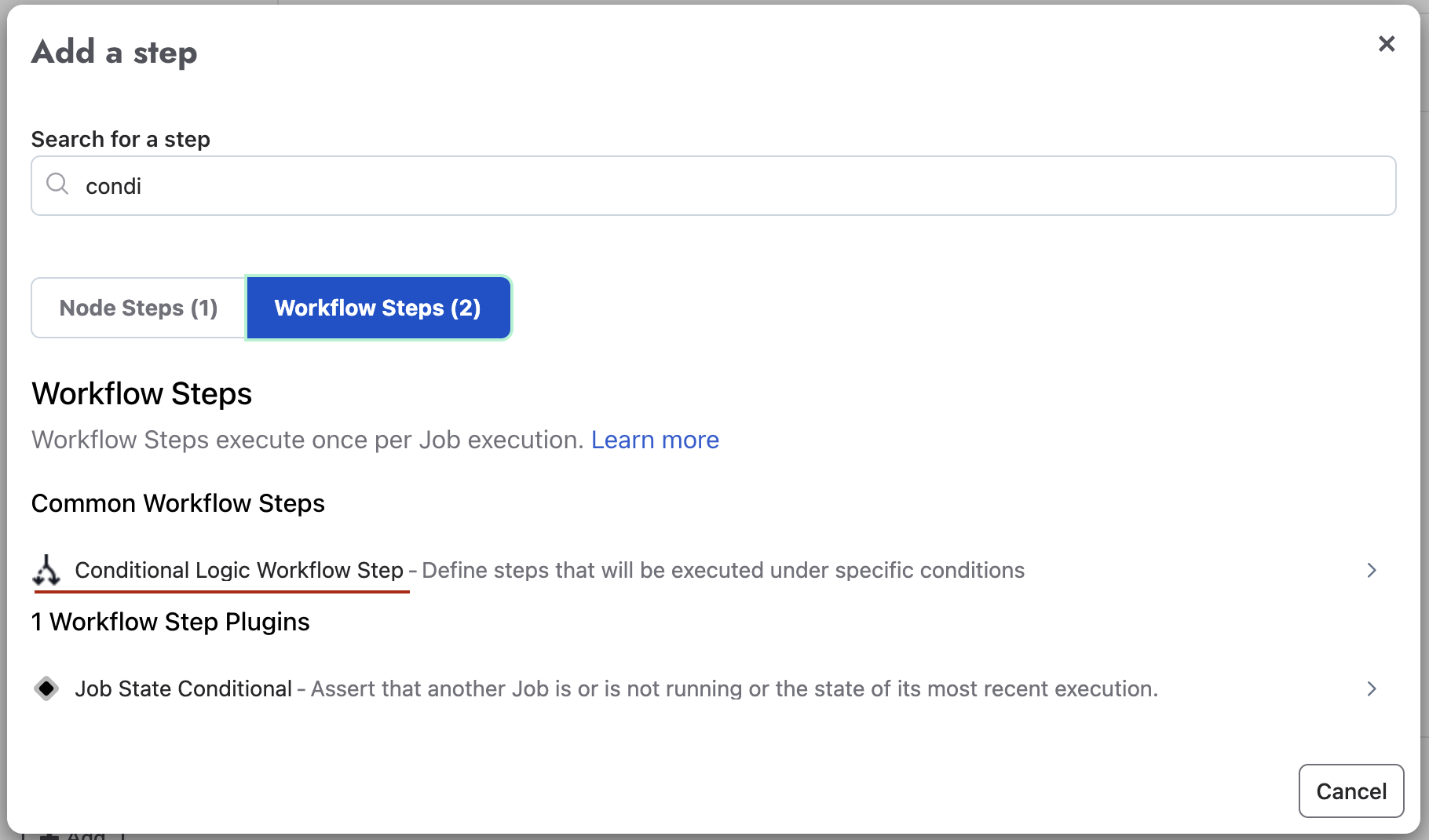
Executes conditionally once per job execution on the Rundeck server. Conditions are evaluated in a global context without node-specific variables.
Available Condition Fields:
- Job Context (job name, project, user)
- Prior Steps (outputs exposed by earlier Workflow Steps)
- Job Options
- Data captured via log filters
Note: Node Attributes and prior Node Step outputs are NOT available for workflow conditional steps.
Use Cases:
- Run steps only in production environment: Field
${option.environment}equalsproduction - Skip steps for specific users: Field
${job.username}not equalsserviceaccount - Branch on a prior workflow step's output: Field
Check Incident - pd_incident_statusequalstriggered - Execute based on captured data: Field
${data.status}equalsready
Adding Conditional Logic Steps
Step 1: Open the Step Picker
In the Job Editor's Workflow tab:
- Click "Add a step" button
- The step picker modal opens with two tabs: Node Steps and Workflow Steps
Step 2: Select Conditional Type
- For Node Conditional Logic: Click the "Node Steps" tab, then select "Node Conditional Logic"
- For Workflow Conditional Logic: Click the "Workflow Steps" tab, then select "Workflow Conditional Logic"
The conditional step editor opens inline at the end of your workflow.
Step 3: Configure the Conditional Step
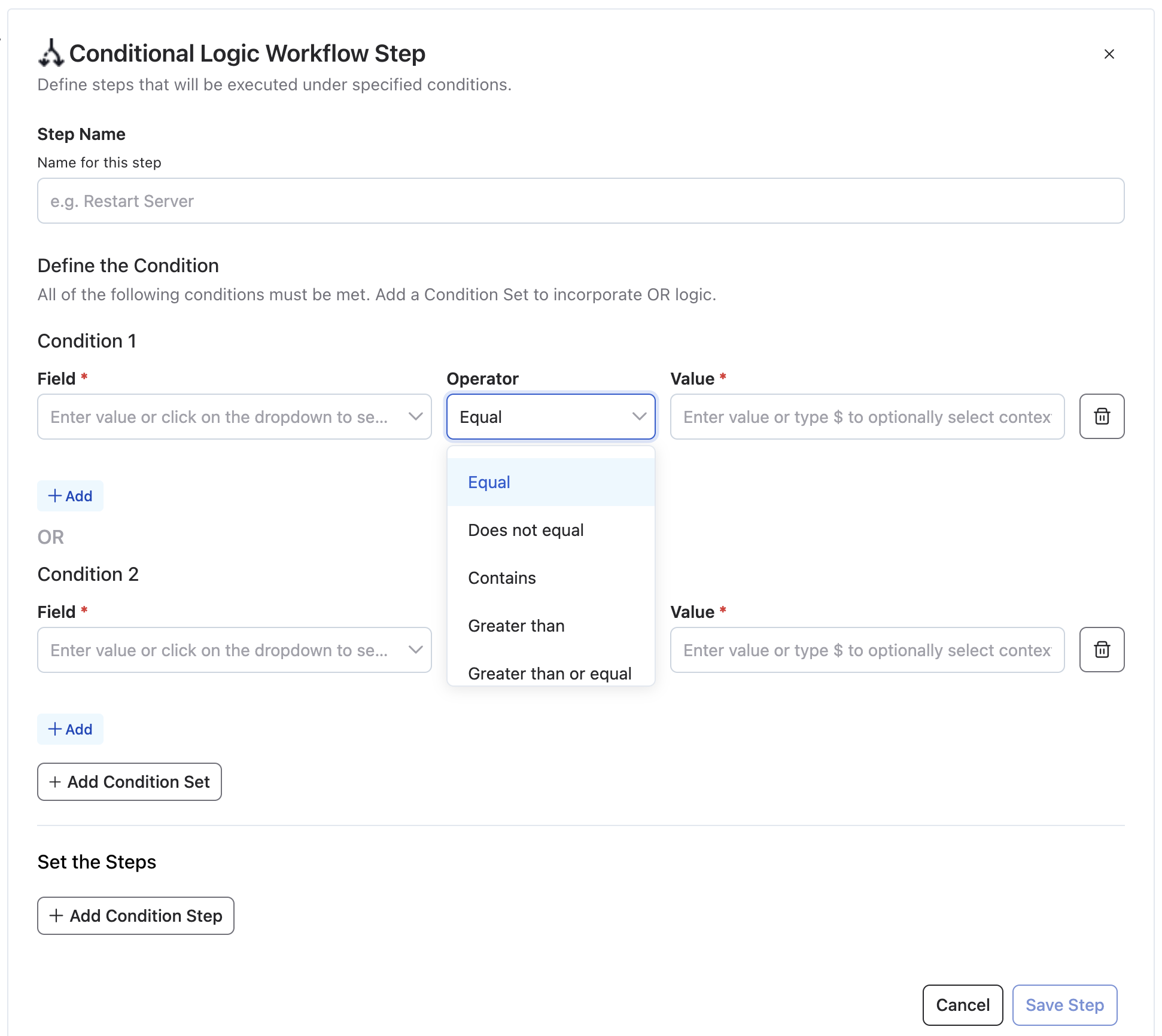
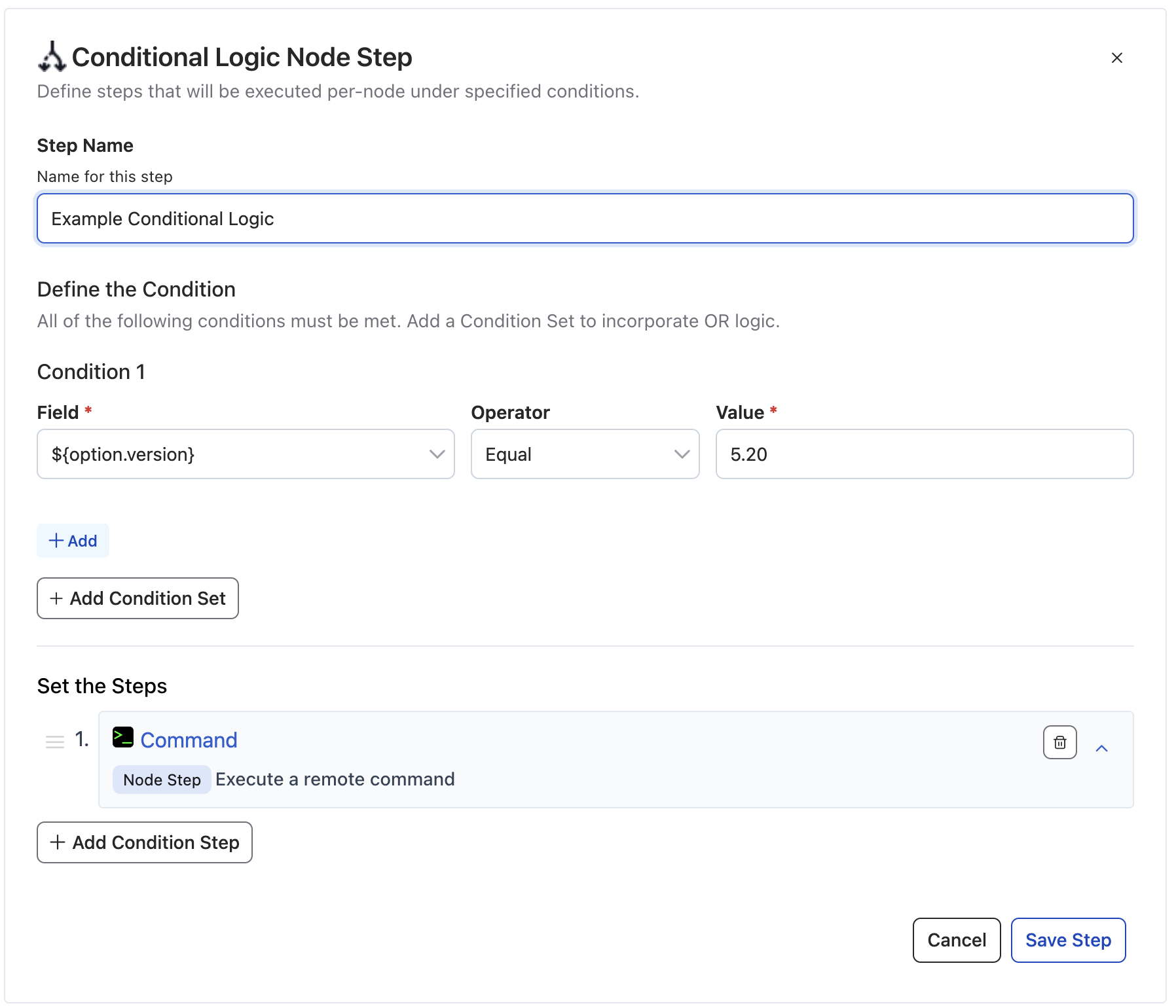
The conditional step editor has three main sections:
1. Step Name
When you add a new step (including a conditional step), the Step Name field is automatically pre-filled with a default name based on the step type (for example, "Conditional Logic Node Step" or "Command"). Existing unnamed steps also receive a default name when opened for editing.
Update the Step Name to a descriptive, unique name (e.g., "Check Linux Nodes", "Production Environment Only"), especially when later conditional steps need to reference a step's outputs via the Prior Steps tab.
2. Define Conditions
Build your condition logic using the condition editor:
Adding a Single Condition:
- Field: Click the Field input to open the tabbed autocomplete menu (Job Context, Prior Steps, Node Attributes for Node Conditionals, and Job Options), or enter a variable reference using
${}syntax (e.g.,${node.osFamily},${option.environment},${data.status}) - Operator: Choose how to compare (equals, not equals, contains, matches, etc.)
- Value: Enter a literal value or use variable syntax like
${option.env}
Adding Multiple Conditions (AND Logic by Default):
Within a condition set, click "Add" to add another condition. By default, all conditions in a set must be true (AND logic).
Example: ${node.osFamily} equals unix AND ${node.hostname} contains web
Adding Condition Sets (OR Logic by Default):
Click "Add Condition Set" to create a new set. By default, the step executes if ANY condition set is true (OR logic).
Example:
- Set 1:
${node.osFamily} equals unixAND${node.tags} contains web - OR
- Set 2:
${node.osFamily} equals windowsAND${node.tags} contains iis
Limits:
- Maximum 5 conditions per condition set
- Maximum 5 condition sets per step
Inverting the Logic: AND/OR Toggle
By default, a Conditional Logic step evaluates AND within each condition set, OR across condition sets. Once you've added a second condition set, a dropdown appears at the last set boundary that lets you invert this: OR within each condition set, AND across condition sets.
Since Rundeck 6.2.0
The AND/OR toggle for condition sets is available starting in Rundeck 6.2.0.
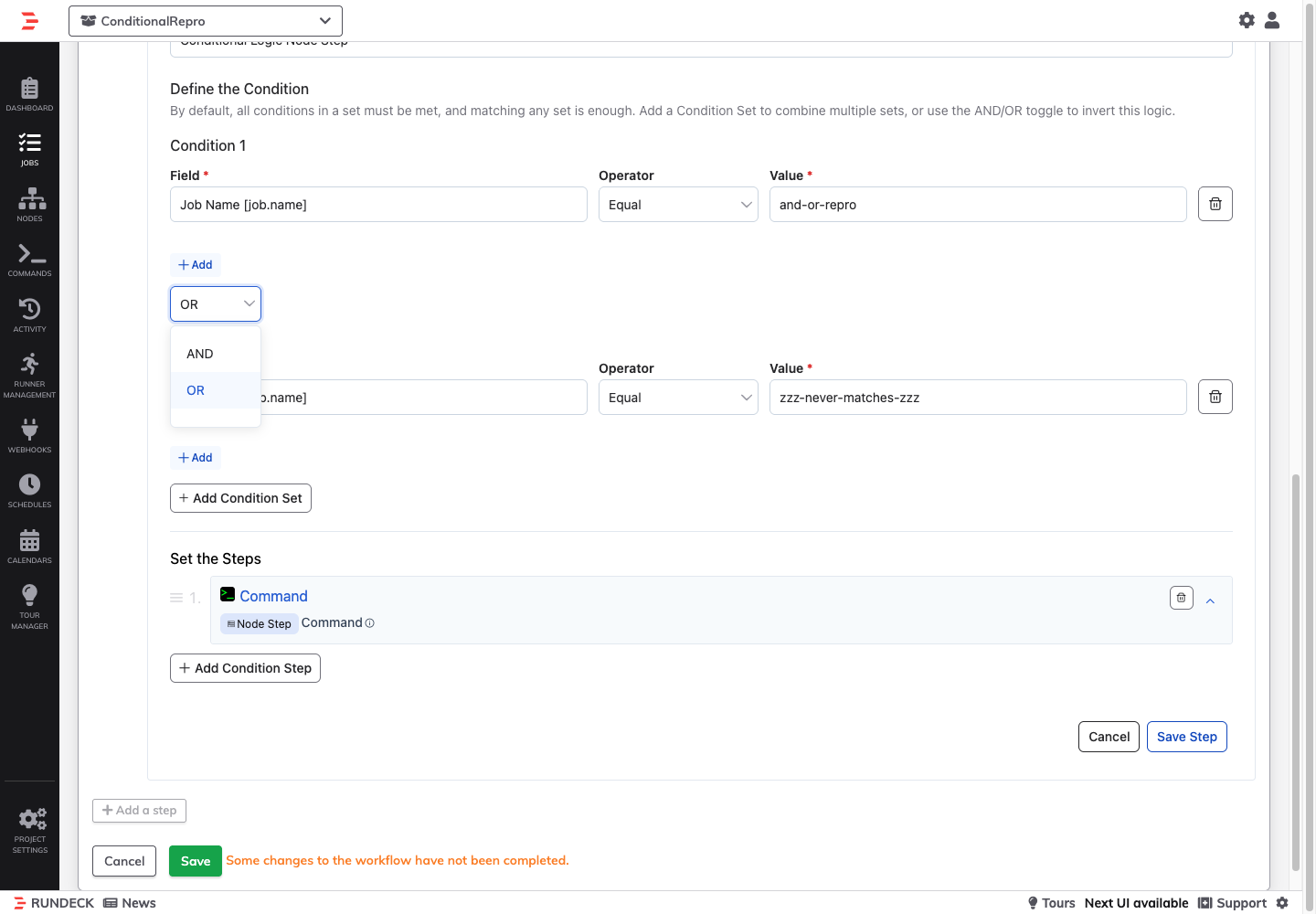
The toggle applies to the whole step, not just the boundary where it appears — it flips both the within-set and across-set operators together.
Why this matters:
The default (AND-within/OR-across) is well suited to "match any of these profiles" logic, where each set describes a complete, self-contained case. But some conditions are naturally expressed as "all of these requirements must hold, and each requirement can be satisfied a few different ways" — which is AND-across/OR-within.
Example: Require production AND an approved region
Suppose a step should only run when the job is targeting a production-like environment and an approved region — but "production-like" and "approved region" each have more than one acceptable value:
- Requirement 1 (environment):
${option.environment}equalsproductionOR${option.environment}equalsstaging - Requirement 2 (region):
${option.region}equalsus-eastOR${option.region}equalsus-west
Modeling this with the default AND/OR grouping would require enumerating every valid combination as a separate condition set (production+us-east, production+us-west, staging+us-east, staging+us-west) — four sets instead of two, and a new set for every environment or region added later.
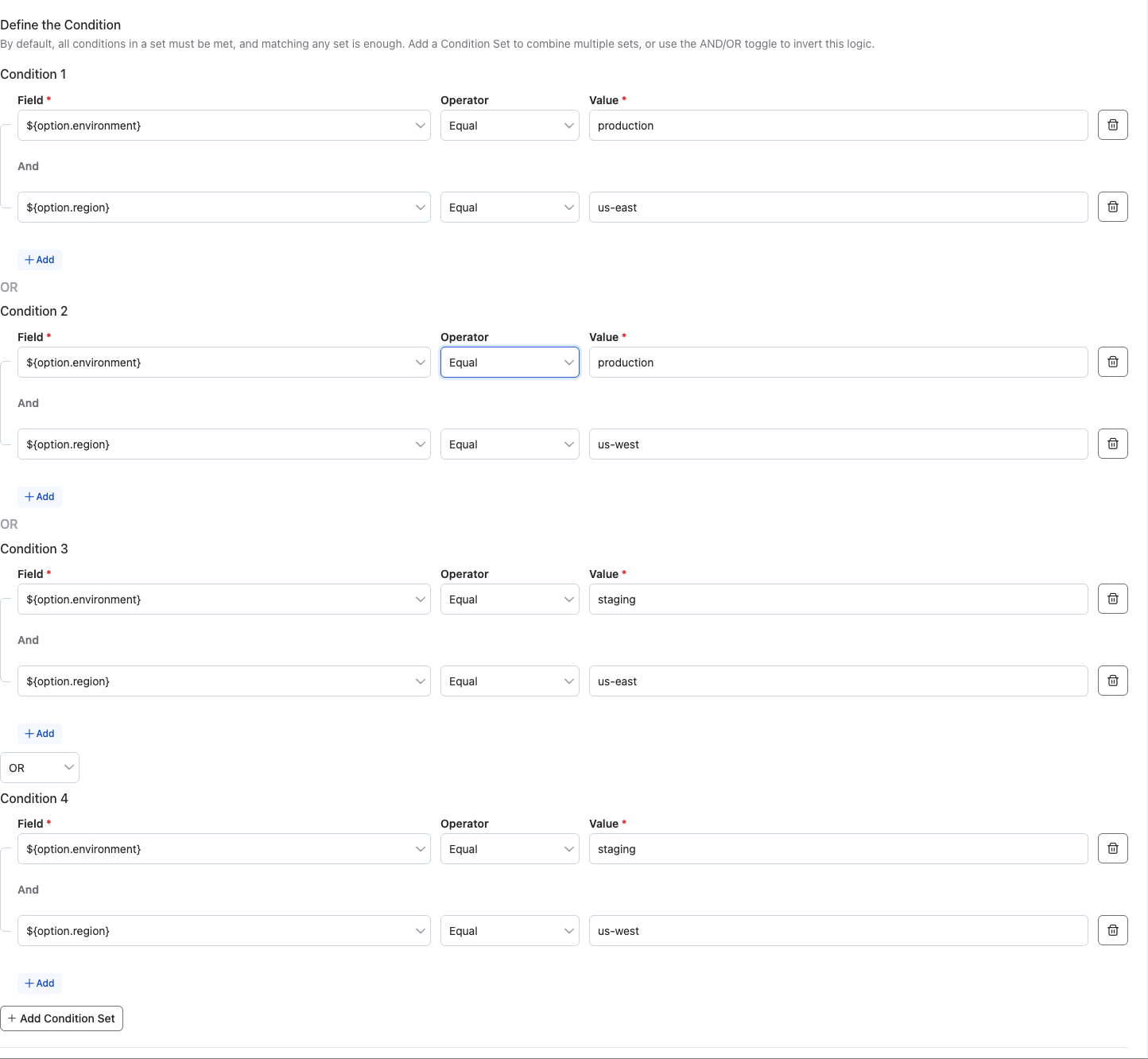
Toggling the logic to invert lets you express it directly as two sets, each OR'd internally, with the sets AND'd together:
- Set 1 (environment, OR within set):
${option.environment}equalsproductionOR${option.environment}equalsstaging - AND
- Set 2 (region, OR within set):
${option.region}equalsus-eastOR${option.region}equalsus-west
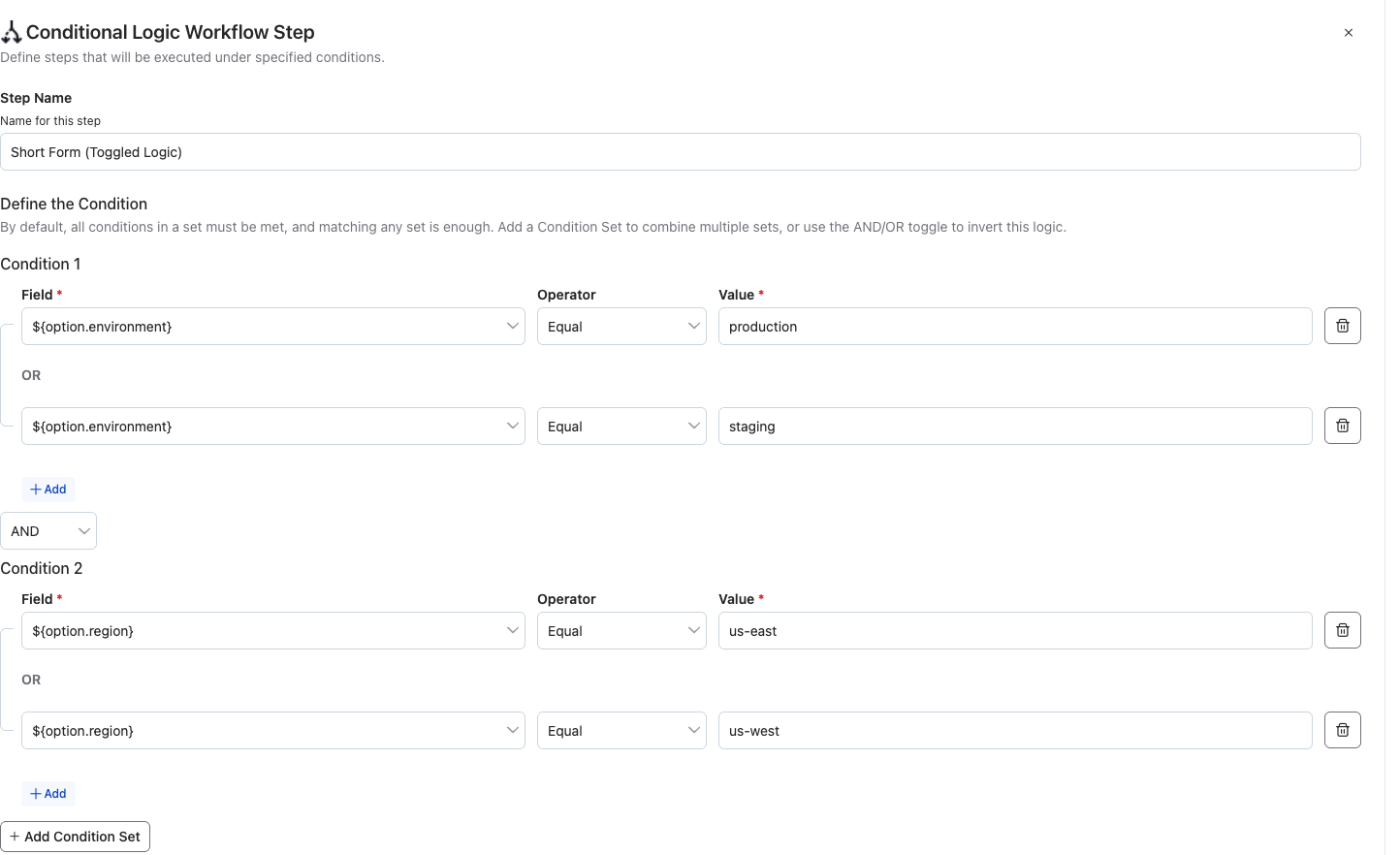
This keeps the condition sets aligned with the business requirements (environment, region) rather than with every combination of values, and it stays maintainable as acceptable values are added or removed.
3. Set the Steps
Add substeps that execute when conditions are met:
- Click "+ Add Condition Step"
- The step picker modal opens (same as adding regular steps)
- Select and configure the substep
- Repeat to add multiple substeps
Important: Substeps must match the parent type:
- Node Conditional Logic → Only Node Steps as substeps
- Workflow Conditional Logic → Only Workflow Steps as substeps
Step 4: Save the Conditional Step
Click "Save Step" to add the conditional step to your workflow.
Click "Cancel" to discard changes.
Available Operators
The following operators are available for condition evaluation:
| Operator | Job definition value | Description | Example |
|---|---|---|---|
| Equals | == | Exact match (case-sensitive) | Field: ${node.osFamily} Value: unix |
| Not Equals | != | Does not match | Field: ${option.env} Value: dev |
| Greater than | > | Numeric comparison | Field: ${option.count} Value: 5 |
| Greater than or equal | >= | Numeric comparison | Field: ${option.count} Value: 5 |
| Less than | < | Numeric comparison | Field: ${option.timeout} Value: 60 |
| Less than or equal | <= | Numeric comparison | Field: ${option.timeout} Value: 60 |
| Contains | contains | Value contains substring | Field: ${node.hostname} Value: web |
| Matches | matches | Regular expression match | Field: ${node.hostname} Value: ^web[0-9]+$ |
Using Variables in Conditions
Field References
Click the Field input to select a variable or step output from the tabbed autocomplete menu:
- Job Context: Job context and global variables
- Prior Steps: Outputs exposed by earlier steps in the workflow (grouped by step name)
- Node Attributes (Node Conditional Logic only): Node attributes
- Job Options: Options declared on the job
You can also enter references directly using ${} syntax or prior-step reference syntax:
Job Context:
${job.name}- Job name${job.project}- Project name${job.username}- User executing the job${job.id}- Job UUID
Job Options:
${option.[name]}- Value of a job option (e.g.,${option.environment})
Node Attributes (Node Conditional Logic only):
${node.hostname}- Node hostname${node.name}- Node name${node.osFamily}- Operating system family (unix, windows)${node.osName}- Operating system name${node.tags}- Node tags (comma-separated)${node.[attribute]}- Any custom node attribute
Prior Step Outputs:
<Step Label> - <Output Name>- Output exposed by a prior step (selected from the Prior Steps tab, where it displays as<Output Name> [steps.['<Step Label>'].<Output Name>])
Data Variables:
${data.[name]}- Data captured via log filters (e.g.,${data.status})
Referencing Prior Step Outputs
Since Rundeck 6.3.0
The Prior Steps tab and built-in step output capture are available starting in Rundeck 6.3.0.
Conditional steps can evaluate outcomes produced by earlier steps—such as incident statuses, created record IDs, or execution counts—without configuring a log filter.
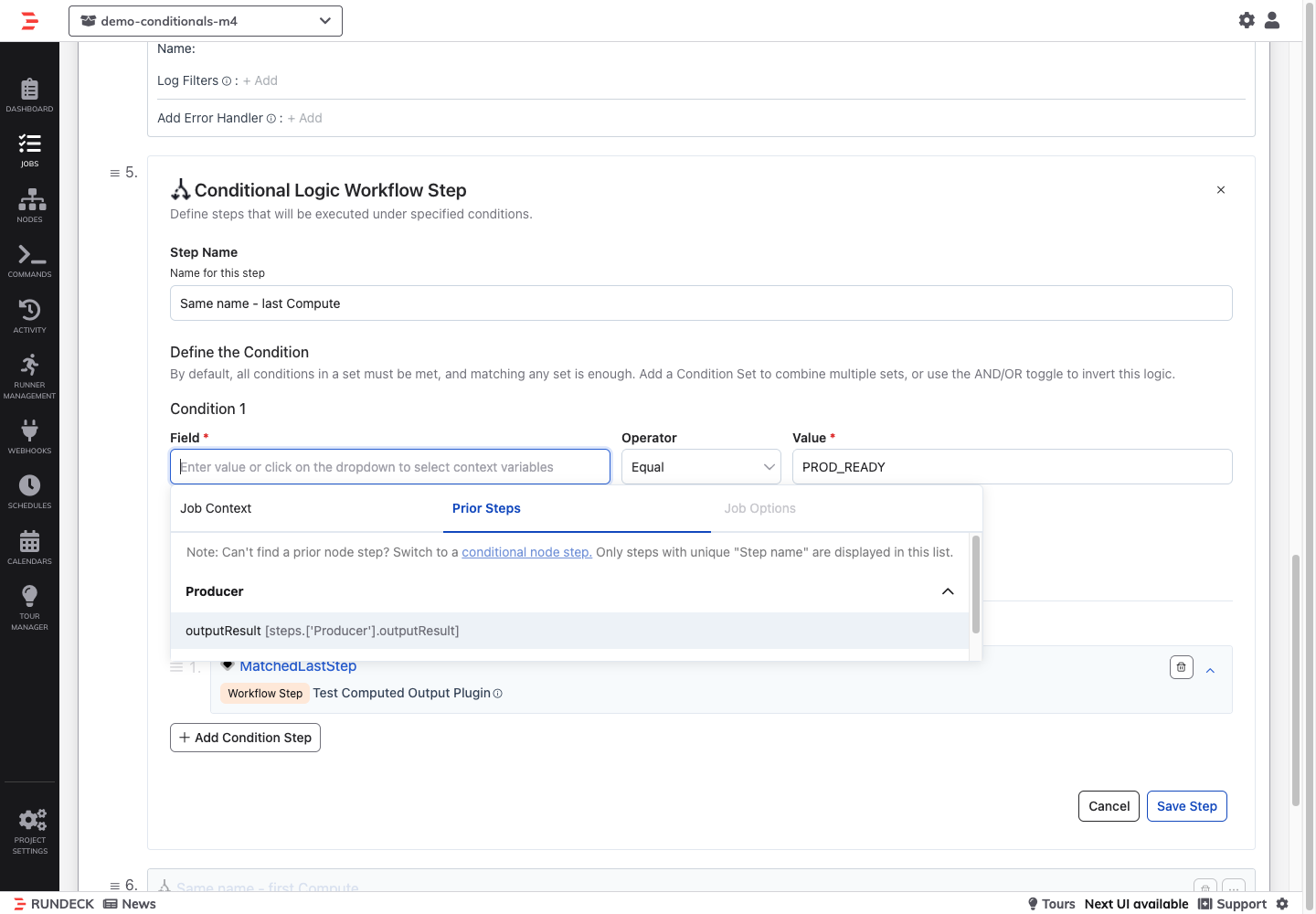
- Ensure the earlier step has a clear, unique Step Name (for example,
Get IncidentorCheck RDS). - In your Conditional Logic step, click the Field input and select the Prior Steps tab.
- Expand the prior step's section in the accordion and select the desired output.
When saved, the condition stores the reference in <Step Label> - <Output Name> format (for example, Get Incident - pd_incident_status), and the collapsed conditional card displays steps.['Get Incident'].pd_incident_status. At runtime, the workflow engine resolves the reference to the value captured when that step executed.
Scoping and Naming Rules:
- Step type matching: A Workflow Conditional Logic step can only reference outputs from prior Workflow Steps. A Node Conditional Logic step can only reference outputs from prior Node Steps (each node evaluates the condition against the output captured on that same node). To switch conditional step types, click the link in the note at the top of the Prior Steps tab.
- Prior sibling scope: Only steps that execute before the conditional step (at the same level or an enclosing level) are in scope. Substeps inside an earlier sibling conditional block cannot be referenced by later steps outside that block.
- Unique step names: If multiple prior steps share the same Step Name, the Prior Steps tab displays the note "Only steps with unique "Step name" are displayed in this list." and lists only the last (most recent) matching step's outputs, matching how the workflow engine resolves duplicate labels at runtime. Give each referenced step a unique Step Name to avoid ambiguity.
Parallel strategy and prior-step outputs
The Prior Steps tab determines scope from the order of steps in the workflow editor. The Parallel strategy starts top-level steps concurrently, so a referenced output might not exist when the conditional evaluates. Use Sequential or Node First when a conditional depends on an earlier step's output.
Built-in Step Plugins Exposing Outputs:
| Plugin Group / Category | Step Plugin | Exposed Outputs |
|---|---|---|
| Built-in (Core) | Job State Conditional | observedExecutionState |
| PagerDuty | PagerDuty / Incident / Get | pd_incident_id, pd_incident_status, pd_incident_summary, pd_priority_id, pd_priority_label, pd_service_id, pd_service_name, pd_urgency, pd_escalation_policy_id, pd_escalation_policy_name |
| PagerDuty | PagerDuty / Incident / Escalate | incidentStatus |
| PagerDuty | PagerDuty / Incident / Run Response Play | responsePlayStatus |
| PagerDuty | PagerDuty / Incident / Start Incident Workflow Instance | workflow_id, workflow_type, workflow_incident_id, workflow_incident_type, workflow_incident_summary |
| PagerDuty | PagerDuty / User / Get, PagerDuty / User / Create | pd_user_id |
| ServiceNow | ServiceNow / Incident / Create | incidentNumber |
| ServiceNow | ServiceNow / Incident / View | incidentState |
| ServiceNow | ServiceNow / Incident / Check Assigned | assignedIncidentCount |
| ServiceNow | ServiceNow / Change / Create | changeNumber |
| Jira | Jira / Issue / Create (Workflow & Node Step) | jira_issue_id, jira_issue_key, jira_issue_url |
| Jira | Jira / Issue / Check Exist | status (captured under issue.status; also resolvable as issueStatus) |
| Datadog | Datadog / Incident / Create | dd_incident_id |
| Datadog | Datadog / Incident / Add Task | dd_task_id |
| AWS | AWS / RDS / Status | rdsInstanceStatus |
| AWS | AWS / ELB / Target Unhealthy | unhealthyTargetCount |
| AWS | AWS / CloudWatch / Execute Saved Query, AWS / CloudWatch / Logs | matchedRecordCount |
| AWS | AWS / Lambda / Invoke (Workflow & Node Step) | functionError |
| AWS | AWS / Lambda / Custom Code Execution | functionName, functionWasCreated, functionWasInvoked, functionWasDeleted, invokeResponsePayloadString, invokeFunctionError, invokeExecutionLog |
| Executions | Executions Search | executionCount |
| Executions | Executions Retry | retriedExecutionCount |
| Executions | Executions Delete | deletedExecutionCount |
| Executions | Executions Wait Result | failedExecutionCount |
| Wait for Job | Wait For Job Execution | waitSucceeded |
| RSS Feeds | RSS Feed / Retrieve Events | eventCount |
| Sensu | Sensu / Get Check Info, Sensu / Run ad hoc Check (Node Steps) | checkStatus |
For Command and Script steps, or plugins that do not declare @PluginOutput properties, capture output using a Log Filter and reference it as ${data.<name>} (or reference the command exit code via ${<stepNum>:exec.exitCode*}).
Value References
Values can be either literal strings/numbers or variable references using ${} syntax:
Literal Values:
Field: ${node.osFamily}   Operator: equals   Value: unix
Field: ${option.count}    Operator: greater than   Value: 10
Field: ${node.hostname}   Operator: contains   Value: web
Variable References:
Field: ${node.hostname}   Operator: equals   Value: ${option.target_host}
Field: ${data.status}     Operator: equals   Value: ${option.expected_status}
Autocomplete Support:
When typing in the Value field, an autocomplete menu displays available variables grouped by type:
- Job tab: Job context variables
- Options tab: Available job options
Managing Conditional Steps
Editing Conditional Steps
- Click the step title or pencil icon in the conditional step card header
- The inline editor opens with current configuration
- Modify conditions, substeps, or step name
- Click "Save" to apply changes or "Cancel" to discard
Reordering Steps
Conditional steps can be reordered like any other workflow step:
- Hover over the conditional step card
- Click and drag the handle icon (⋮⋮) to move the step
- A blue horizontal bar shows the drop position
- Release to place the step in the new position
Use Undo above the workflow to revert the last change, or Revert All Changes to restore the workflow to its last saved state.
Reorder Protection and Reference Validation:
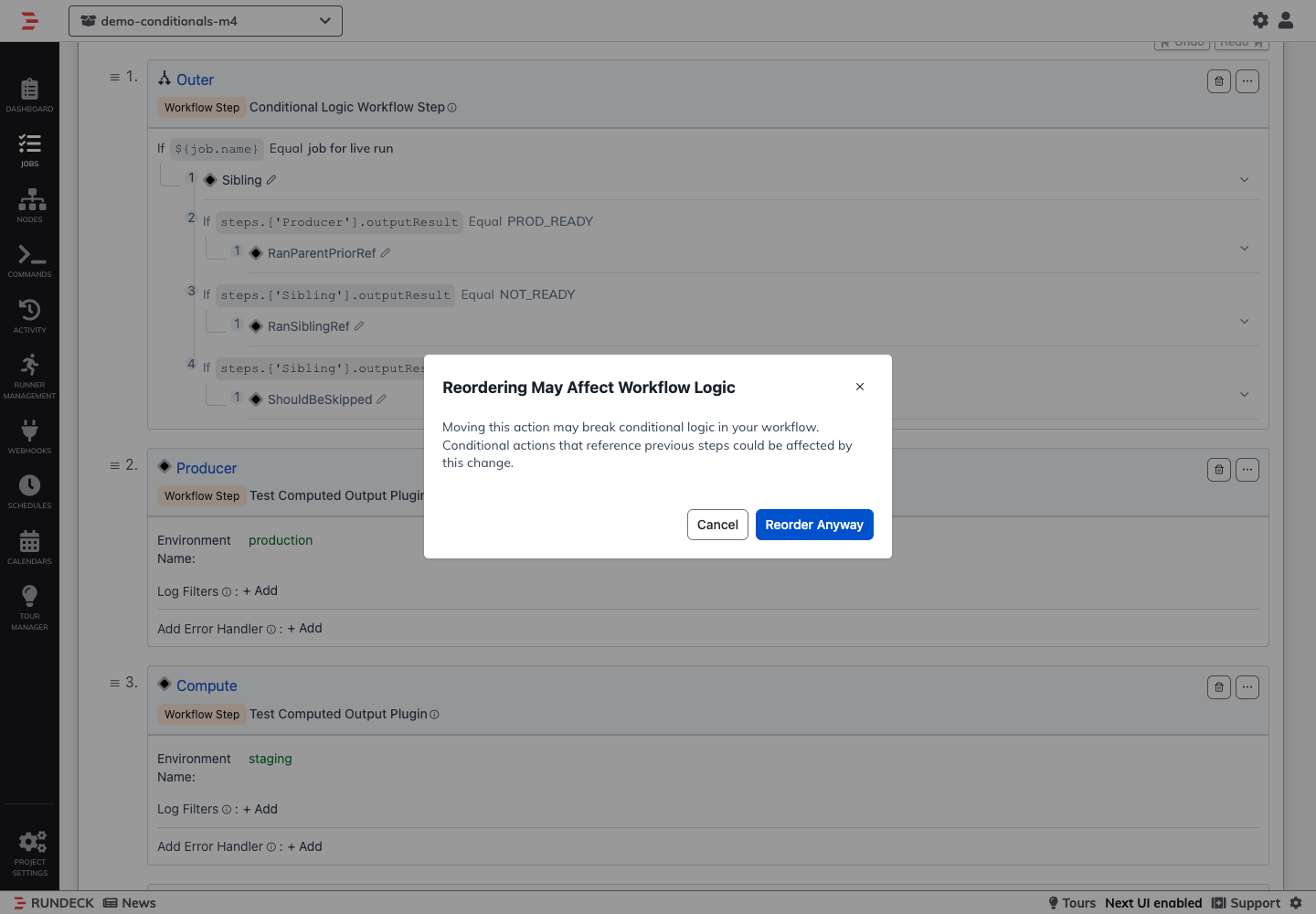
- If you drag a step to a position that breaks a downstream conditional step's prior-step reference (for example, moving a referenced step below the conditional step that depends on it), a "Reordering May Affect Workflow Logic" confirmation modal appears. Choose Cancel to keep the current order or Reorder Anyway to proceed.
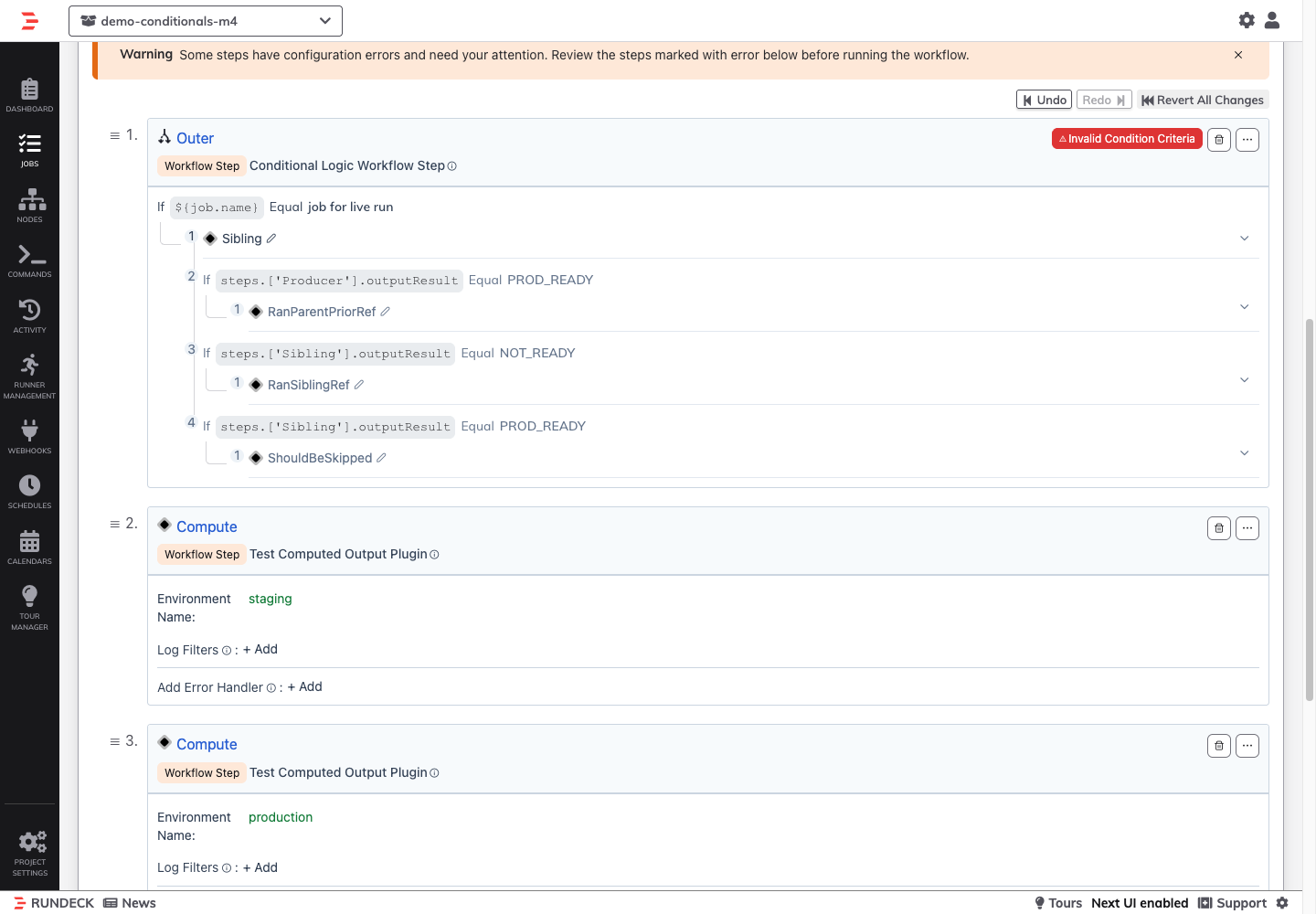
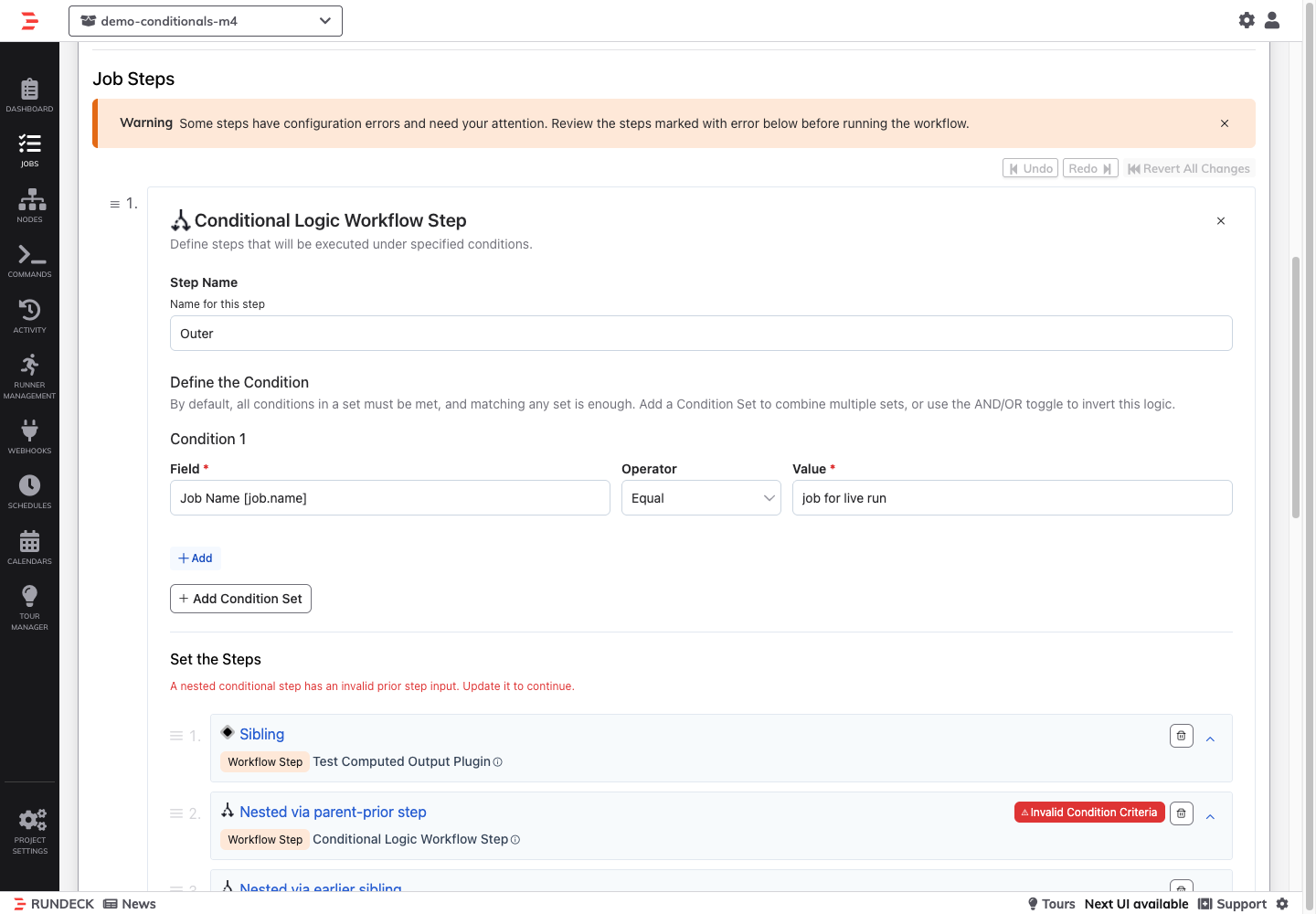
- If a referenced prior step is renamed, deleted, or moved after the conditional step, the collapsed conditional step card displays an Invalid Condition Criteria badge, a warning banner appears above the workflow step list, and saving the conditional step is blocked until the invalid Field reference is updated.
Duplicating Steps
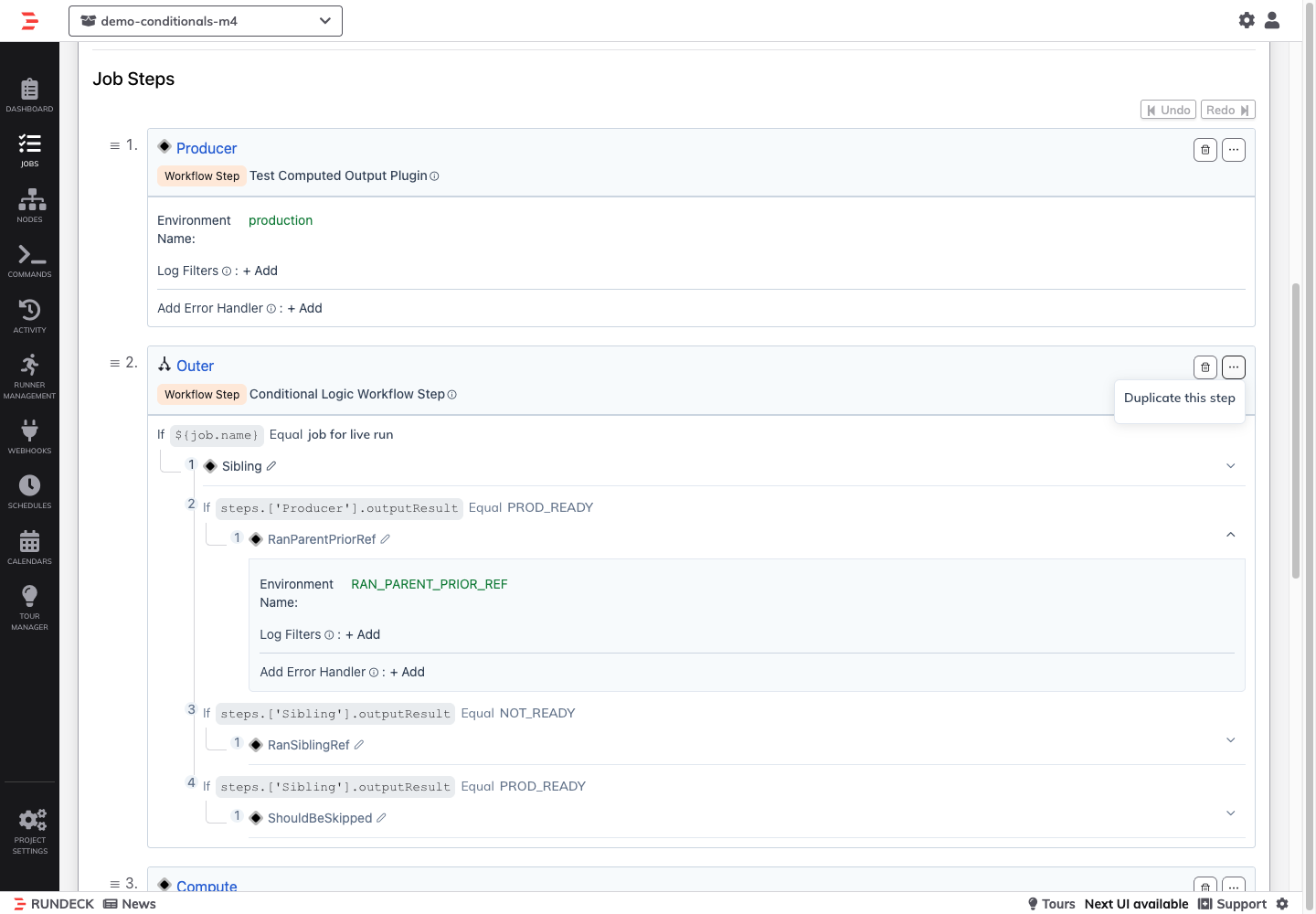
Open the three-dot actions menu (⋯) on the conditional step card and select Duplicate this step. The duplicate appears immediately after the original step.
Deleting Steps
Click "Delete" on a conditional step card to remove it from the workflow. Use "Undo" to restore a deleted step.
Execution Behavior
Condition Evaluation
When a job executes:
- The workflow engine evaluates conditions for each conditional step
- For Node Conditional Logic: Conditions are evaluated independently for each node
- For Workflow Conditional Logic: Conditions are evaluated once at the workflow level
- If conditions are true, substeps execute; if false, substeps are skipped
Debug Mode
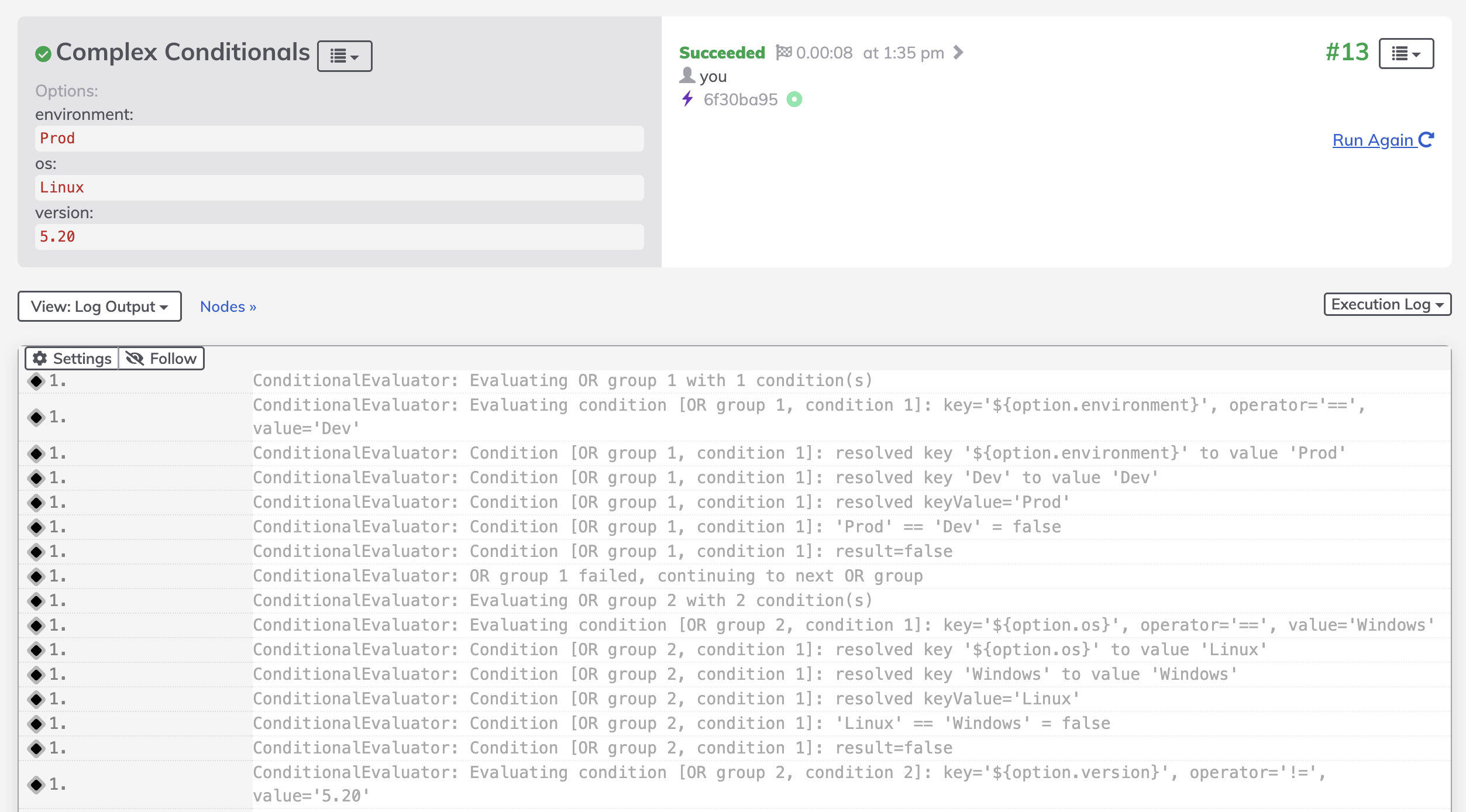
Enable Debug logging level when running a job to see detailed condition evaluation.
Debug output shows:
- Each condition being evaluated
- Resolved values for variables
- Whether each condition passed or failed
- Whether the overall condition set was true or false
Execution Log Display
In the execution log:
- Conditions Met: Substeps appear in the log and execute normally
- Conditions Not Met: A log message indicates the conditional step was skipped, and substeps do not appear
Workflow Strategies
Conditional Logic steps work with Sequential, Parallel, and Node First strategies (not Ruleset):
Sequential Strategy (Step First):
- Evaluates each conditional step across nodes before moving to the next step
- Substeps execute on matching nodes according to sequential ordering
Parallel Strategy:
- All steps (including conditionals) run in parallel
- Conditional evaluation happens concurrently across nodes
- Substeps execute in parallel when conditions are met
- Prior-step output dependencies are not ordered; use Sequential or Node First when a condition requires an earlier step to finish first
Node First Strategy:
- Runs the full workflow on each node before moving to the next node
- Conditions are evaluated as the workflow progresses on each node
- Substeps execute on that node when conditions are met
Advanced Scenarios
Complex Condition Logic
Combine AND/OR logic for sophisticated conditions:
Example: Linux web servers OR Windows IIS servers
Condition Set 1 (Linux):
- Field:
${node.osFamily}Operator:equalsValue:unix - Field:
${node.tags}Operator:containsValue:web
OR
Condition Set 2 (Windows):
- Field:
${node.osFamily}Operator:equalsValue:windows - Field:
${node.tags}Operator:containsValue:iis
See Inverting the Logic: AND/OR Toggle above for cases where the sets should be AND'd together instead, with OR logic within each set.
Nested Conditionals
You can place a Conditional Logic step one level inside another Conditional Logic step. The nested conditional can contain regular substeps, but it cannot contain another conditional.
- Add a parent Conditional Logic step and define its conditions
- Click "+ Add Condition Step" and select another Conditional Logic step as a substep
- Configure the nested conditional's conditions and its own substeps
- When the parent condition is met, the nested conditional evaluates independently
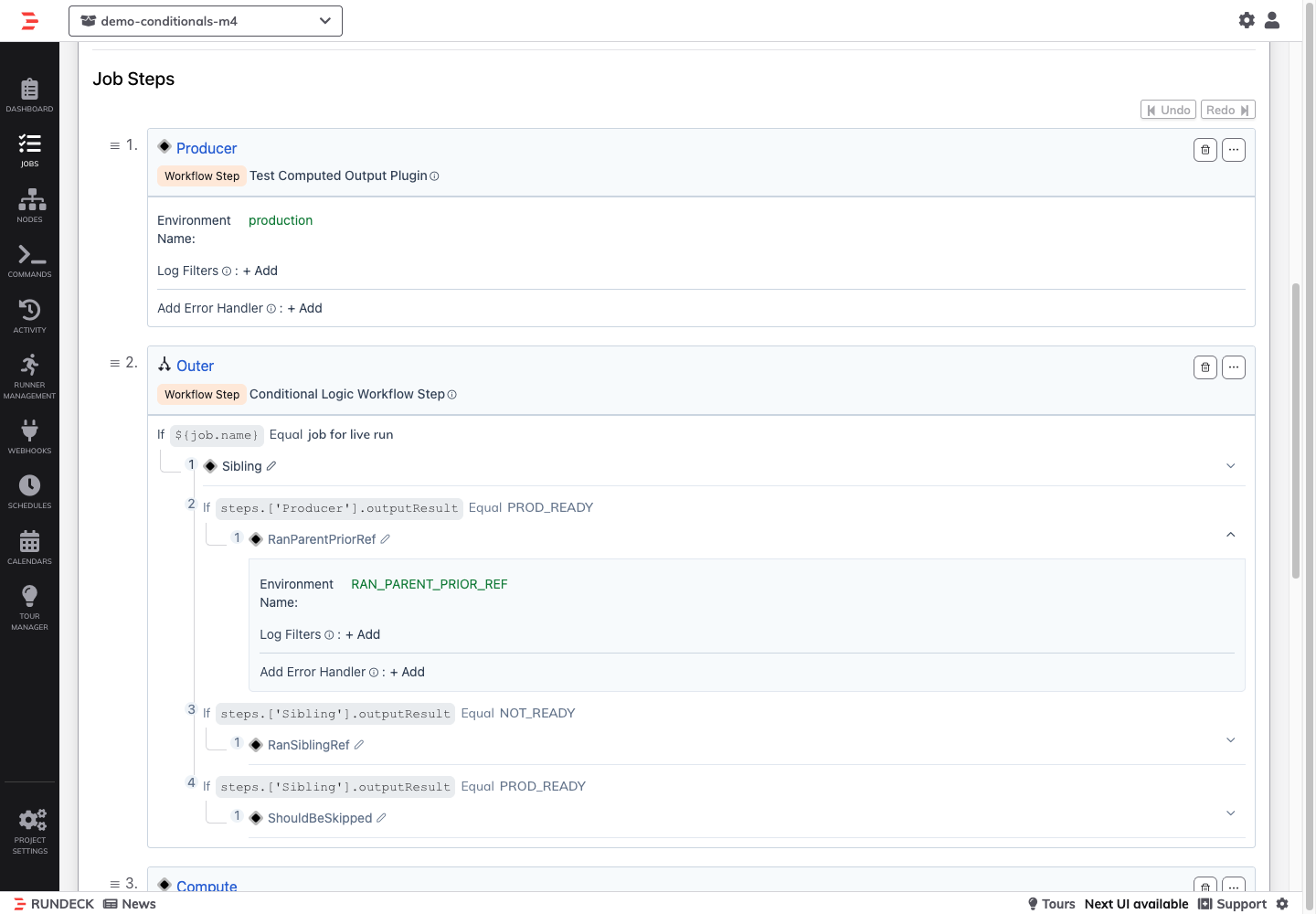
Example: Environment gate, then OS-specific commands
- Node Conditional Logic:
${option.environment}equalsproduction- Nested Node Conditional Logic:
${node.osFamily}equalsunix- Substeps: Linux production commands
- Nested Node Conditional Logic:
${node.osFamily}equalswindows- Substeps: Windows production commands
- Nested Node Conditional Logic:
Use a Job Reference substep when deeper or reusable branching is required.
Environment-Based Workflows
Use job options with conditionals to create environment-aware workflows:
Job Options:
environment(choice: dev, staging, production)
Conditional Steps:
- Workflow Conditional Logic: Field
${option.environment}equalsproduction- Substeps: Send notification, require approval, backup database
- Workflow Conditional Logic: Field
${option.environment}not equalsproduction- Substeps: Skip approval, use test credentials
Node Attribute Filtering
Target specific nodes without modifying node filters:
Example: Run commands only on database nodes
Node Conditional Logic:
- Condition: Field
${node.tags}Operator:containsValue:database - Substeps: Database maintenance commands
This allows the job to have a broader node filter but selectively execute steps.
Troubleshooting
Conditional Step Not Available
Problem: Conditional Logic steps don't appear in the step picker.
Solutions:
- Check workflow strategy is Sequential, Parallel, or Node First (Ruleset is not supported)
- Verify
rundeck.feature.earlyAccessJobConditional.enabledis not set tofalseinrundeck-config.properties(on Runbook Automation 5.20.0–6.2.x, setrundeck.feature.earlyAccessJobConditional.enabled=trueand restart Rundeck)
Conditions Not Evaluating Correctly
Problem: Substeps execute when they shouldn't (or vice versa).
Solutions:
- Enable Debug mode when running the job to see condition evaluation details
- Verify option names match exactly (case-sensitive)
- For node attributes, confirm the attribute exists on target nodes
- Important: Standard context fields must use
${}syntax (e.g.,${node.osFamily}notnode.osFamily), or select an exposed step output from the Prior Steps tab (<Step Label> - <Output Name>) - Values can be literal or use
${}syntax for variables - Use
containsinstead ofequalsfor partial matching
Note on Step Output:
- For step plugins that expose outputs (such as PagerDuty, ServiceNow, Jira, Datadog, AWS, Sensu, or Job State Conditional), select the output directly from the Prior Steps tab in the Field dropdown
- For Command, Script, or other steps, add a log filter (e.g., Key Value Data) to capture the output, then reference it using
${data.variableName}in your conditions
Cannot Add Substeps
Problem: Cannot add substeps or wrong substep types appear.
Solutions:
- Ensure substeps match parent type (Node substeps for Node Conditional, Workflow substeps for Workflow Conditional)
- Check that you haven't exceeded the maximum number of substeps (no hard limit, but consider workflow complexity)
Validation Errors
Problem: Cannot save conditional step.
Solutions:
- Ensure all required fields are filled (Field and Value are required)
- If a condition shows
"Invalid prior step input. Update this field to continue.", the referenced prior step was renamed, deleted, or moved after the conditional step. Re-select a valid step output from the Prior Steps tab - If a parent conditional shows
"A nested conditional step has an invalid prior step input. Update it to continue.", open its nested conditional and update the invalid Field reference - At least one condition must be defined
- Check for syntax errors in regex patterns (for
matchesoperator) - Important: Context variable fields must use
${}syntax - verify syntax like${option.name}not$option.name
Import/Export Issues
Problem: Cannot import job with conditionals.
Solutions:
- Conditional Logic is supported in JSON and YAML formats only
- XML format is NOT supported - attempting to import XML with conditionals will fail
- When exporting, use JSON or YAML format
- Ensure the feature flag is not disabled (
rundeck.feature.earlyAccessJobConditional.enabled=false) before importing jobs with conditionals
Job Definition Format
Conditional Logic steps are supported in JSON and YAML job definition formats.
Format Support
| Format | Supported | Notes |
|---|---|---|
| JSON | Yes | Recommended format |
| YAML | Yes | Recommended format |
| XML | No | Will cause errors if job contains conditionals |
Structure
Conditional steps use the following structure in job definitions:
JSON Example:
[
  {
    "name": "Example Job",
    "loglevel": "INFO",
    "sequence": {
      "commands": [
        {
          "type": "conditional",
          "nodeStep": true,
          "description": "Check Linux Nodes",
          "invertLogic": false,
          "conditionGroups": [
            [
              {
                "key": "${node.osFamily}",
                "operator": "==",
                "value": "unix"
              }
            ]
          ],
          "subSteps": [
            {
              "exec": "echo 'Running on Linux'"
            }
          ]
        }
      ]
    }
  }
]
YAML Example:
- name: Example Job
  loglevel: INFO
  sequence:
    commands:
      - type: conditional
        nodeStep: true
        description: Check Linux Nodes
        invertLogic: false
        conditionGroups:
          - - key: "${node.osFamily}"
              operator: "=="
              value: "unix"
        subSteps:
          - exec: echo 'Running on Linux'
Import Validation
When importing job definitions:
- Feature flag: Jobs with
type: conditionalsteps require Conditional Logic to be enabled (enabled by default in 6.3.0+) - Strategy validation: Import will fail if workflow strategy is Ruleset
- Substep type validation: Import will fail if substeps don't match parent type (node/workflow)
Error Example (when feature flag is disabled):
Import failed: Job contains conditional logic steps but feature
'rundeck.feature.earlyAccessJobConditional.enabled' is not enabled.
Export Restrictions
When exporting jobs:
XML Export:
- Attempting to export a job with conditional steps to XML format will fail with an error
- Error message:
XML format does not support conditional logic steps. Use JSON or YAML format.
JSON/YAML Export:
- Jobs with conditionals export successfully
- All condition definitions, substeps, and configuration are preserved
Best Practices
Condition Design
- Keep conditions simple: Prefer multiple simple conditions over complex regex patterns
- Use descriptive step names: Help other users understand what the conditional does
- Test with debug mode: Always verify condition evaluation before production use
- Document expected behavior: Use job description to explain conditional logic
Performance Considerations
- Limit condition complexity: Many conditions or complex regex can impact performance
- Avoid unnecessary conditionals: If all nodes should execute, don't add conditionals
- Use node filters first: Filter nodes at the job level, use conditionals for fine-grained control
Maintainability
- Consistent naming: Use standard naming conventions for options and data variables
- Keep nesting readable: Use the supported single nesting level sparingly; use Job References when the same branching logic should be reused across jobs
- Group related substeps: Keep logically related steps together within a conditional
- Comment your logic: Add notes in job description explaining complex conditional workflows
Related Documentation
- Job Workflows - Overview of workflow execution
- Job Variables - Complete variable reference
- Workflow Strategies - Strategy details
- Job Options - Creating and using job options
- Log Filters - Capturing data for use in conditions
- Document Format Reference - Job definition formats