
Connect to Windows Nodes with PyWinRM
Connect to Windows Nodes with PyWinRM
Rundeck allows users to execute jobs to remote Windows nodes to manage and automate tasks using Rundeck workflows. This article shows how to add a Windows node and execute Rundeck jobs and commands with windows-based systems.
To communicate with Windows nodes, Rundeck uses an out-of-the-box Node Execution/ File Copier plugin that uses the WinRM (Windows Remote Management) protocol.
Note: If this is the first time adding remote nodes, we suggest reviewing the Rundeck Tutorial before adding Windows nodes. This exercise assumes some experience with Windows and Rundeck basics covered in the Tutorial.
Basic pywinrm Plugin Requirements
The pywinrm plugin needs the following requirements on the Rundeck server to work properly. It is supported on Rundeck running on Linux, Mac OS X, or Windows operating systems.
Requirements:
Tips
Make sure the Python interpreter used by the plugin can import pywinrm. If Python Interpreter is a command name such as python3, that command must be on PATH. If you set a full path (for example a virtualenv), that interpreter is used instead.
- We recommend these commands to check the Python installation:
# Windows OS
where python
# linux OS
which python3
The interpreter used for project node execution should be the same one that can import the pywinrm packages.
The pywinrm plugin uses the python WinRM Library to provide the WinRM implementation.
- Python 3.8 or newer on the Rundeck (or Runbook Automation) server and on any Enterprise Runner host that executes PyWinRM. Python 2 is not supported in current py-winrm-plugin releases (upstream pywinrm requires Python 3.8+). For Rundeck 6.0 upgrades, confirm the interpreter before upgrading. See Upgrading to Rundeck 6.0.
- Pywinrm library (install with a Python 3
pip, for example:pip3 install pywinrm) - OpenSSL version 1.1.1 or higher. (openssl version can be checked with the following command:
openssl version - "OpenSSL 1.1.1k")requests-kerberosandrequests-credsspare optional.
On distributions that mark the system Python as externally managed (for example Ubuntu 24.04+), install pywinrm with the OS package manager, or set Python Interpreter to a virtualenv interpreter that already has pywinrm installed. The field accepts a command name (python3) or a full path (/opt/winrm-venv/bin/python3). Override per node with winrm-interpreter.
Note: Due to networking complexity issues this exercise will not work with the Welcome Projects. These steps assume you have Rundeck installed using these instructions. For more information see the Additional Information section.
Basic Windows Requirements
To follow this How to Guide, your Windows system needs the following requirements:
- A Windows node in the same network as the Rundeck instance
- Windows Server 2008 R2 or above
- PowerShell 2.0 or above
Windows Configuration
The first step is to configure the Windows machine. To do this, go to the Windows instance and follow the these steps:
- Open a PowerShell terminal as an admin user profile.
- Enable the WinRM protocol on Windows:
winrm qc - Define the authentication type:
winrm set winrm/config/service/Auth '@{Basic="true"}' - Define the client authentication type:
winrm set winrm/config/client/Auth '@{Basic="true"}' - Allow unencrypted SOAP messages:
winrm set winrm/config/service '@{AllowUnencrypted="true"}'
Warning
It's important to allow access to the 5985 port via Windows Firewall (any between the Rundeck server and the node), to receive the remote requests.
Note: These settings are for Exercise purposes only and do not represent the most secure method of implementing. Please follow your own security guidelines for production implementations.
Rundeck Configuration
Create a Windows-based project on the Rundeck instance.
- Create a new project: Name
windows, and LabelWindows Jobs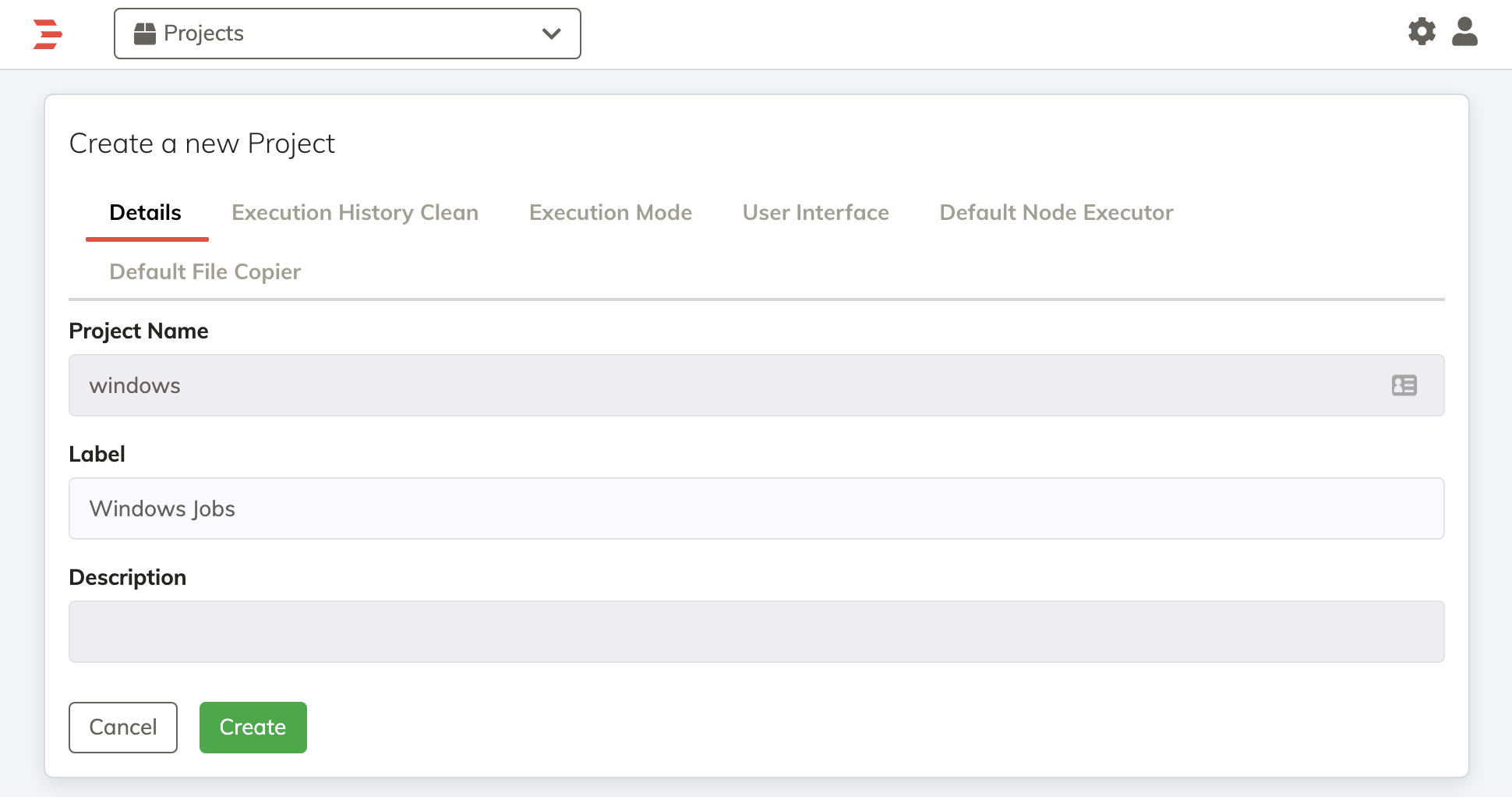
- Go to the Default Node Executor tab and then select WinRM Node Executor Python. Set Python Interpreter to
python3, or to the full path of a virtualenv interpreter if the system Python is externally managed.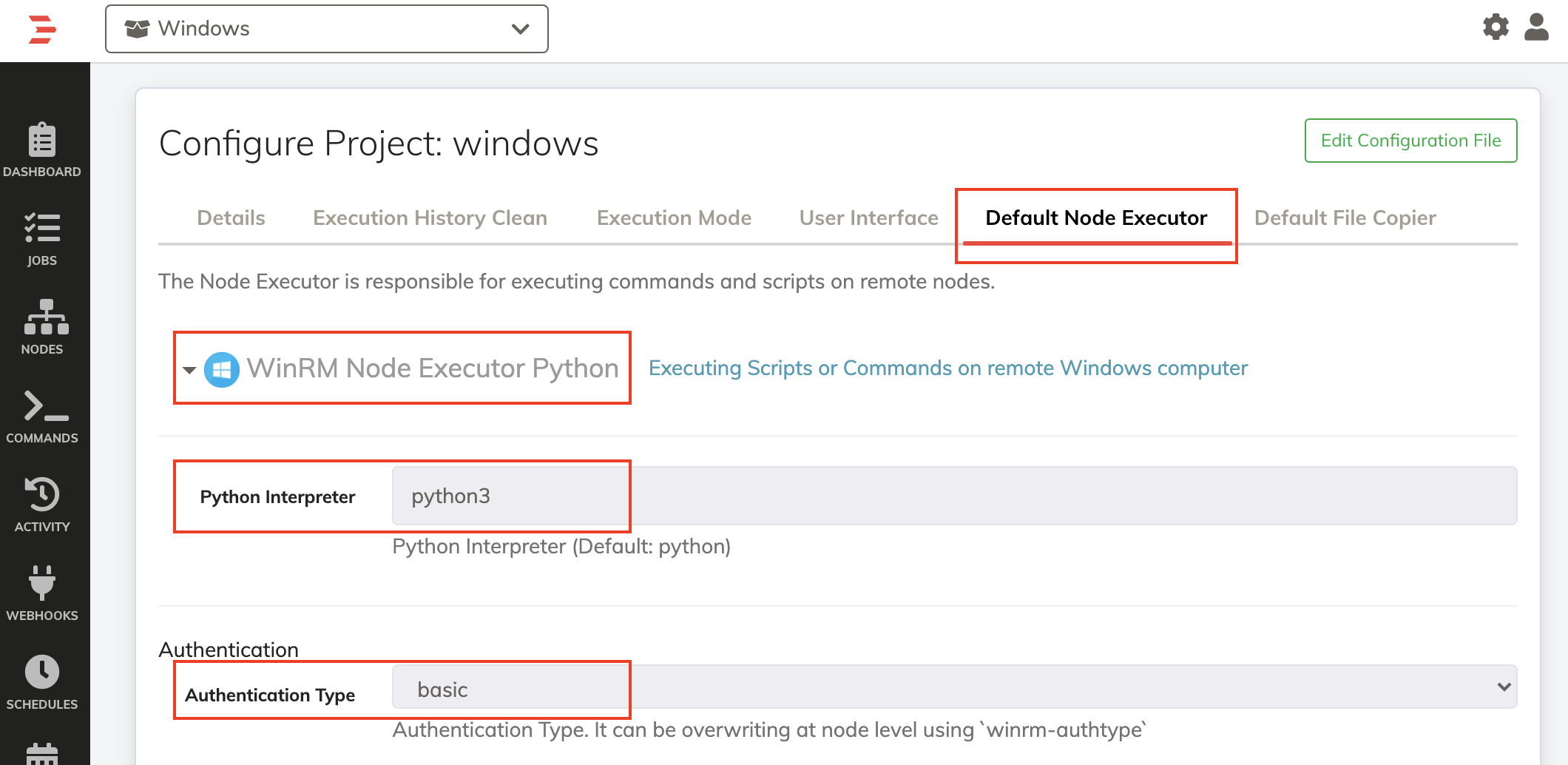
- Go to the Default File Copier tab and select the WinRM Python File Copier. Use the same Python Interpreter value as the node executor.
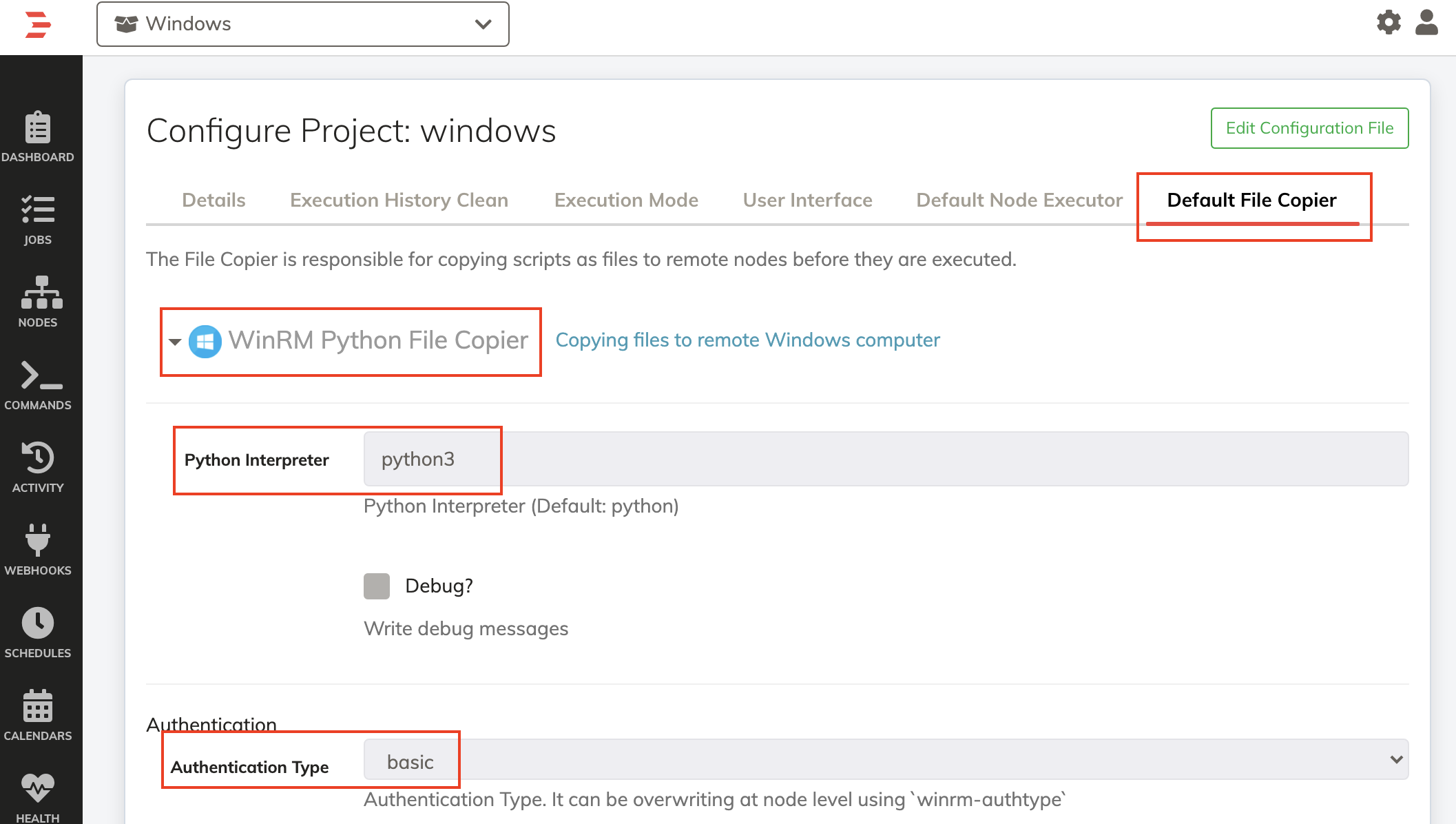
- Click on the Create button.
Additional Configuration
The following properties can optionally be set in the WinRM Node Executor and WinRM File Copier:
Python Interpreter: Python command or full path used to run the plugin (default:python3). Use a command onPATHor a virtualenv interpreter. This can be overridden on nodes withwinrm-interpreter.No SSL Verification: When this is set totrue, SSL is not validated in the WinRM communication. This can be overridden on nodes withwinrm-nossl.Disable TLS 1.2: Check this box to execute over TLS 1.0. This can be overridden on nodes withwinrm-disable-tls-12.WinRM Transport Protocol: Optionally choose HTTP or HTTPS for the WinRM transport protocol. This can be overridden on nodes withwinrm-transport.WinRM Port: The WinRM port to use. The default is port 5985. This can be overridden on nodes withwinrm-port.WinRM Username: Optional username. The username can be set at node level (using the attributeusername) or at job level (using an input option calledusername).Certificate Path: The path for SSL verification. This can be overridden on nodes withwinrm-certpath.Important
winrm-certpathexpects a file system path (e.g.,/opt/rundeck/certs/certificate.pem), NOT a Rundeck Key Storage path (e.g.,keys/project/...). The certificate path is passed directly to the pywinrm library without Key Storage resolution. The certificate file must be in PEM format and readable by the Rundeck user on the Enterprise Runner or Rundeck server.Connect/Read Times Out: The maximum seconds to wait before an HTTP connect/read times out (default 30). This value should be slightly higher than operation timeout, as the server can block at least that long. This can be overridden on nodes withwinrm-readtimeout.Proxy: Optionally specify a proxy address for communicating with Windows nodes. Example HTTP proxy strings arehttp://server:portandhttp://user:pass@server:port. An example SOCKS5 proxy string issocks5://user:pass@server:port. This can be overridden on nodes withwinrm-proxy.No Proxy List: Comma-separated list of hosts, IPs, or CIDRs that should bypass the proxy and connect directly. Supports exact IPs, CIDR notation (192.168.1.0/24), domain suffixes (.internal.corp), hostnames, and wildcard (*). Requires Proxy to also be set. This can be overridden on nodes withwinrm-noproxy.Operation Timeout: The maximum allowed time in seconds for any single wsman HTTP operation (default 20). Note that operation timeouts while receiving output will be silently retried indefinitely. This can be overridden on nodes withwinrm-operationtimeout.Shell: The Windows shell interpreter. Options includecmdandpowershell. This can be overridden on nodes withwinrm-shell.Script Exit Behavior: Script Exit Behaviour. Options include:console(default): if the std-error console has data, the process fails.exitcode: script won't fail by default, the user must control the exit code, such as by using a try/catch block. See Running Scripts for more details.
Terminate On Abort: When enabled, aborting a job terminates the remote command and its whole process tree on the Windows node. Disabled by default (legacy behaviour). Applies to the WinRM Node Executor. This can be overridden on nodes withwinrm-terminate-on-abort. See Aborting jobs.Retry connection: Retry the connection to the node if the connection fails. This can be overridden on nodes withwinrm-retry-connection.Retry Connection Delay: Delay in seconds between each retry attempt. This can be overridden on nodes withwinrm-retry-connection-delay.Enable HTTP logging in debug mode: Print extra HTTP logging when the job log level is DEBUG. This can be overridden on nodes withwinrm-enable-http-logging.krb5 Config File: Path to akrb5.conffile, either on the Runbook Automation server or Enterprise Runner's host.Kinit Command:kinitcommand used to create a Kerberos ticket (default:kinit).Kerberos Delegations: If True, TGT is sent to target server to allow multiple hops.
Clean Escaping: Cleans unnecessarily Escaped characters on commands. This can be overridden on nodes withclean-escaping.
WinRM shells default to Windows code page 65001 (UTF-8). If command output is garbled on nodes that use a different ANSI code page (for example Japanese Windows, code page 932), set the node attribute codepage to the numeric Windows code page. Invalid values fall back to 65001.
Adding a Windows Test Node
Now Rundeck should ask about the model source. Let's start with the Windows node definition.
- Click on the Add a new Node Source + button.
- Select Node Wizard.
- Click Save on the Node Wizard Source.
- Click Save on the Sources tab.
- Switch to the Edit tab.
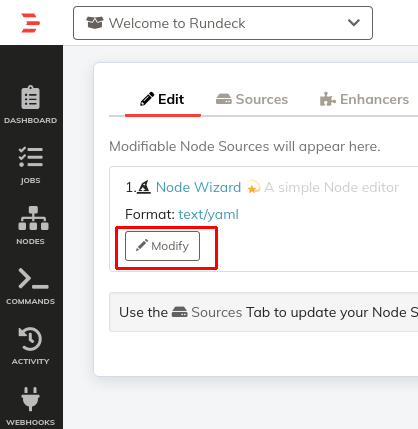
- Click the Modify button under the Node Wizard entry.
- Set the Node Name to
mywindows - Set HostName to the IP address of your Windows Host.
- Set OS Family to
Windows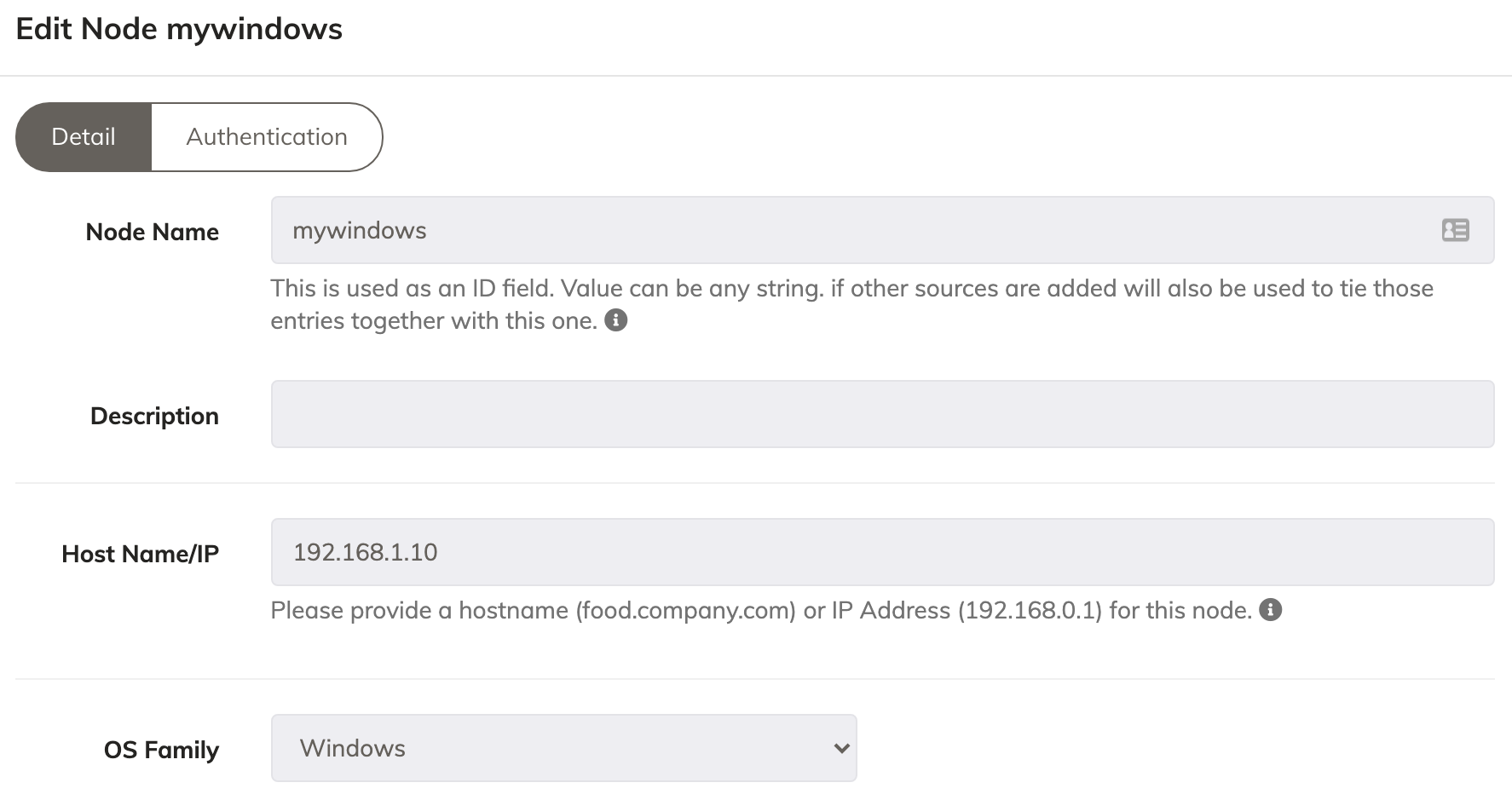
- Click the Authentication Tab at the top.
- Enter your user name for the UserName. (e.g. Administrator)
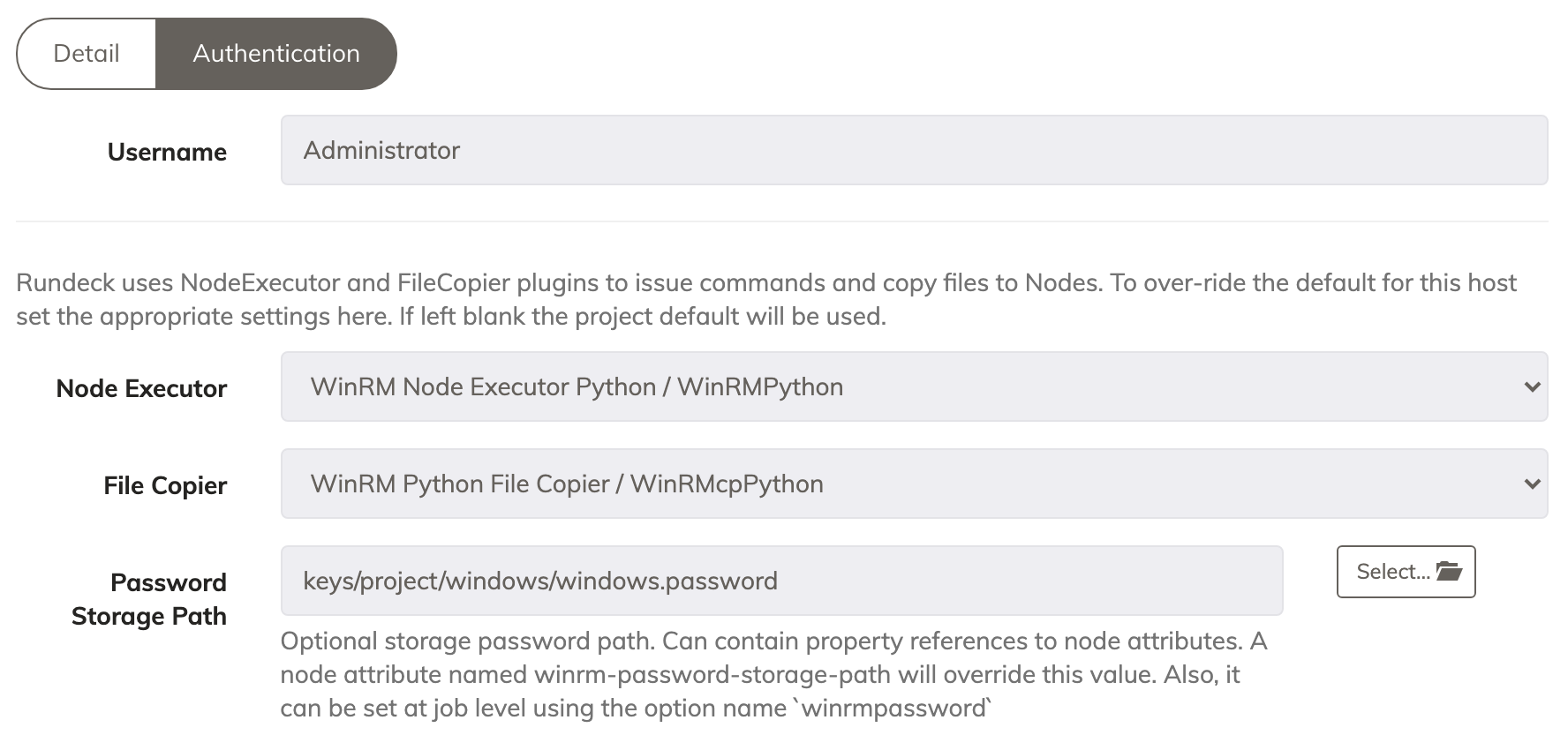
- Set the Password Storage Path to
keys/project/windows/windows.password - Click Add Node to save that node entry.
- Click the Save button under the list of nodes.
- Click on the Add a new Node Source + button.
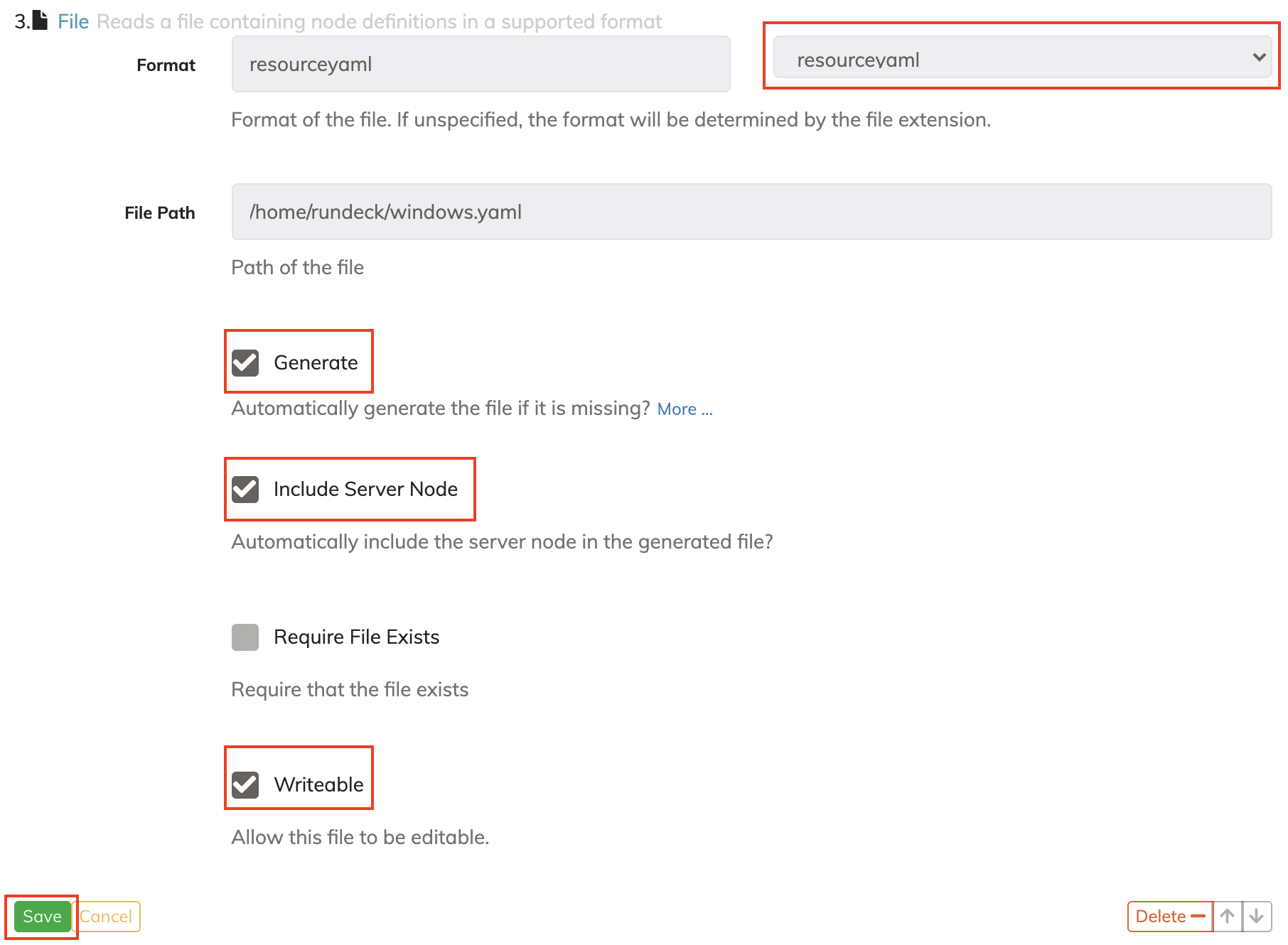
- Select File

- In the Format section, click on the right list and select the resourceyaml option.
- Put the file's desired path including the file name and extension. (e.g.
~/windows-nodes.yaml) - Select check boxes for Generate, Include Server Node and Writeable checkboxes, and then click on the Save buttons (there are two).
- Now click on the Edit tab, and click on the Modify button.
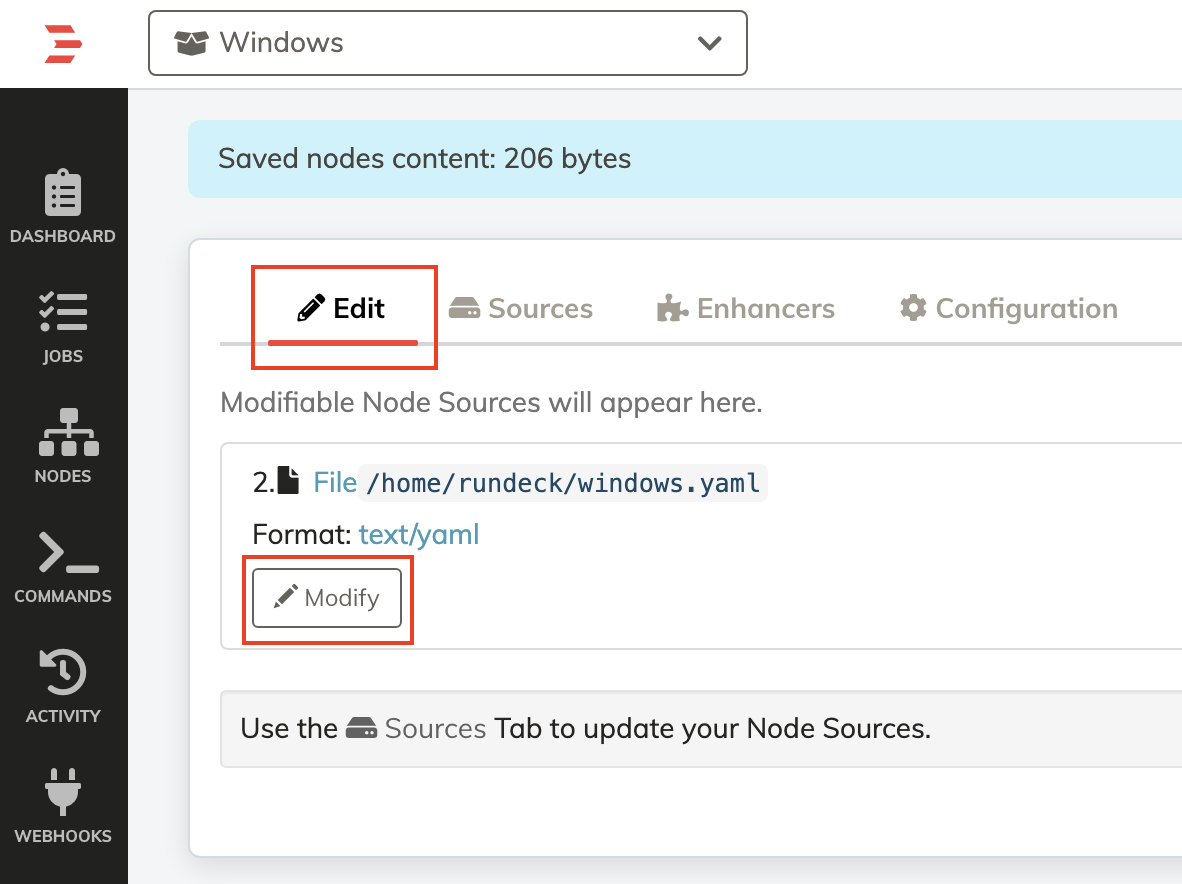
- Add the following node definition in the node definition text area. Make sure you use your own nodes IP Address for hostname and login name for usernameOptional node attributes include
mywindows: description: Windows Server. tags: windows hostname: 192.168.1.10 osArch: amd64 osFamily: windows username: Administrator winrm-password-storage-path: "keys/windows.password"winrm-interpreter,winrm-noproxy,winrm-terminate-on-abort, andcodepage(numeric Windows code page; default65001). See Additional Configuration. - **Save the entry.
The node is available now by clicking on the "Nodes" section in the left sidebar and setting the filter to.*
Don't forget to add the Windows user password to the Rundeck key storage.
- Go to the System Menu(Gear Icon) > Key Storage.
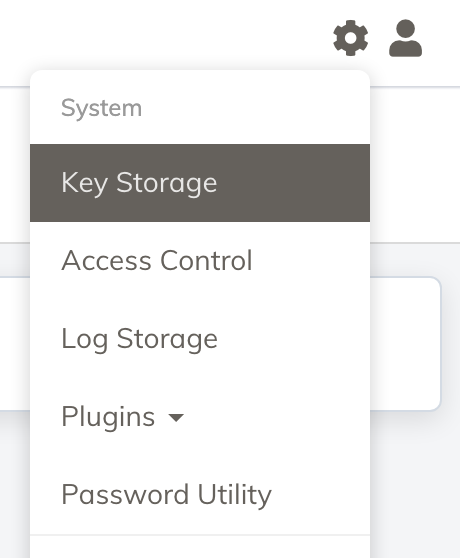
- Click on the + Add or Upload a Key button.
- Enter the Windows password as shown in the image and save.
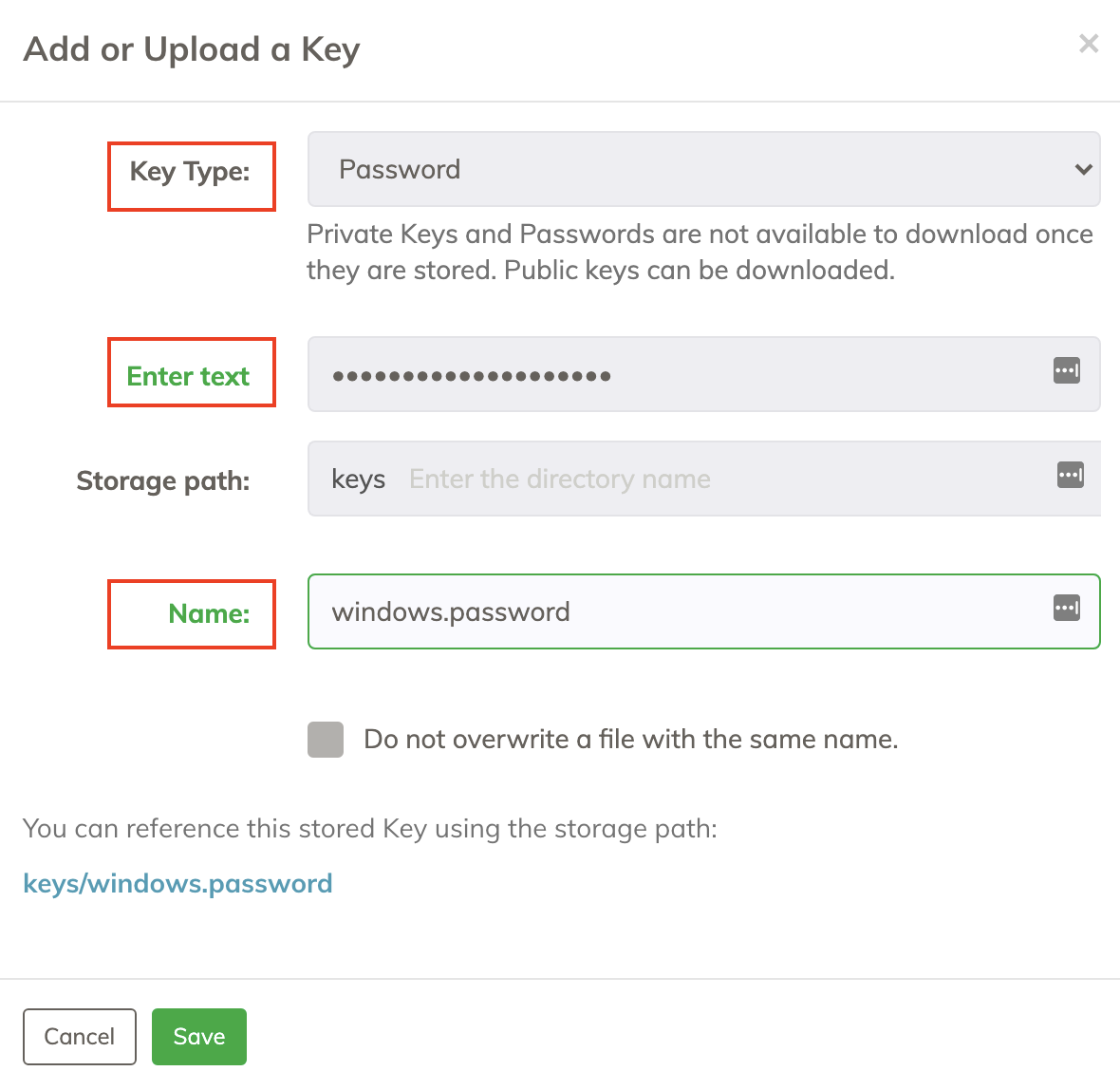
Enterprise Users may need to add
project/windowsto the Storage Path line.
Testing the New Windows Remote Node
Now it's time to send some commands against the windows remote machine.
- Click on the Commands section on the left sidebar.
- On the Nodes section use a filter to dispatch only to the Windows machine, type:
name: mywindows - On the Enter a command textbox type:
dir(listing directories and files). - Click on the Run on 1 Node button.
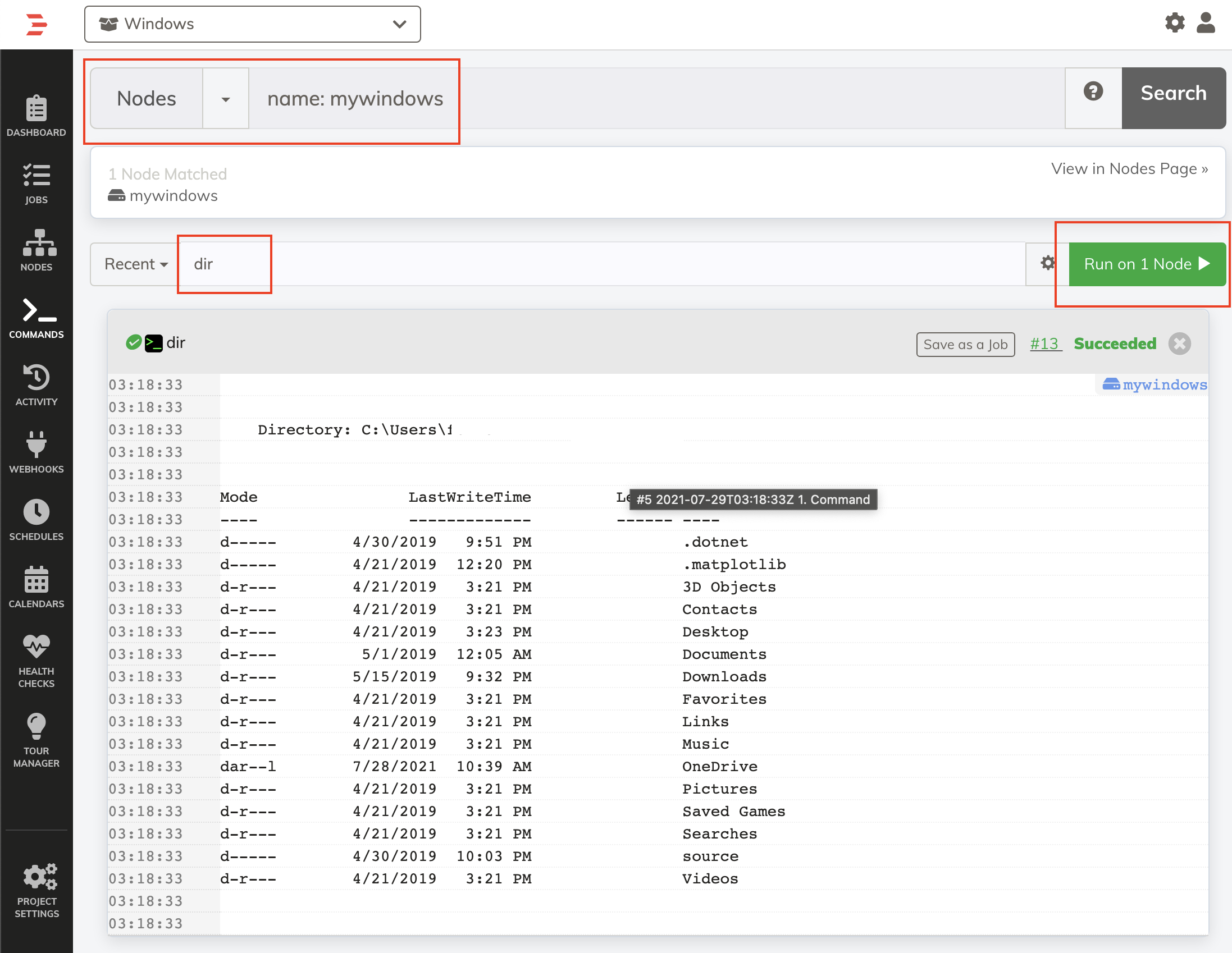
And now your Windows node is ready to receive PowerShell commands from the Rundeck instance.
Additional Information
Using Linux? Read the Using SSH on Linux/Unix Nodes article to learn more.
Networking Issues
Docker Desktop has some limitations to how it handles networking. Check out this information about how to get the Rundeck Welcome Projects to connect to a single host on your local network.