Node Enhancers
Node Enhancers
Rundeck offers node enhancers to help you to better organize, manage and keep up to date on the status of your nodes. There are three different node enhancers: Attribute Match, Icon and Health Check (Commercial).
Attribute Match
The attribute match enhancer is a way for you to add new attributes to various nodes. This is done by finding attribute matches. So, any nodes with attributes matching the one specified will have the new attributes added to them.
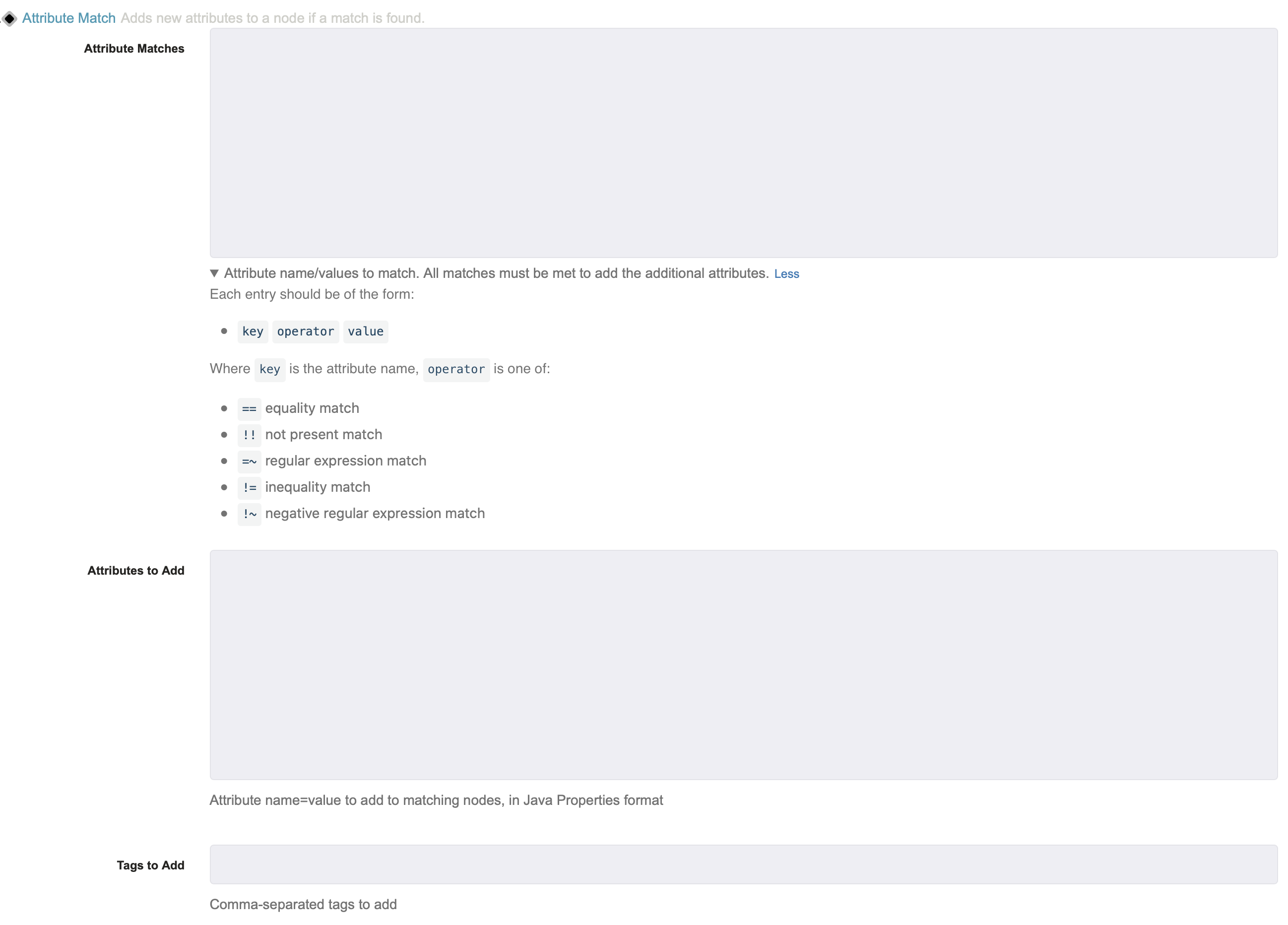
Attribute Matches : This is where you specify the attribute that you want to search for. By doing so, you can add new attributes to the nodes that match based off of what you input this section. Each match is entered on its own line using the format
key<operator>value, wherekeyis the attribute name. All matches must succeed for a node to be enhanced. See Match Operators for the supported operators.Attributes to Add : This is where you specify the new attributes that you wish to add to the nodes that matched the attributes you specified above. So, any attributes you put here will show up on all the nodes that match based off your Attribute Matches input.
Tags to Add : This is where you specify any tags you want added to the nodes that match. You can enter numerous tags, all separated by a comma.
Enable Attribute Substitution : When enabled, values in Attributes to Add and Tags to Add can reference a node's existing attributes using
${attribute}syntax. For example,image-${ec2.imageId}as a tag, ornewattr=some-${oldattr}/${otherattr}as an attribute. References to attributes that do not exist on the node resolve to an empty string. This option is disabled by default, so existing configurations are unaffected.
Heads Up
If you would like to match the node name attribute, use 'nodename' instead of 'name'. The latter one works at 'Node filter' context only.
Match Operators
The Attribute Matches field supports the following operators. Most operators compare an attribute against a value, while the presence operators only check whether an attribute exists.
| Operator | Match | Value |
|---|---|---|
== | Equality match | Required |
!= | Inequality match | Required |
=~ | Regular expression match | Required |
!~ | Negative regular expression match | Required |
~~ | Is present match (attribute exists) | Not used |
!! | Not present match (attribute is absent) | Not used |
Attribute Match Examples
Assign a Node Executor to a Subset of Node Inventory
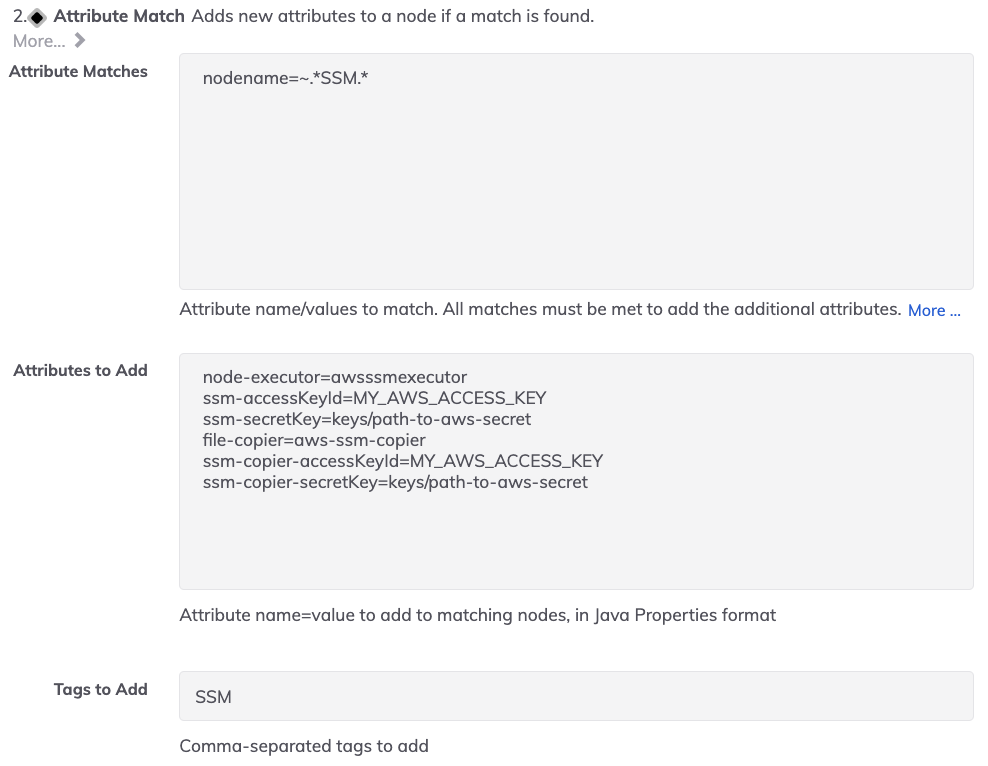
There are times when it is useful to declare a specific node-executor for a subset of the node inventory. This is easily accomplished using Node Enhancers. For example, when the EC2 Node Source is added, the Default Node Executor - such as SSH - is automatically assigned to all the imported EC2's for that Node Source. In order to specify that the WinRM or the Systems Manager (SSM) node executors are used for a subset of this inventory, the following Node Enhancer configurations could be utilized:
Use SSM for All Nodes with SSM in the Node Name:
- Attribute Match:
nodename=~.*SSM.* - Attributes to Add:
node-executor=awsssmexecutor
ssm-accessKeyId=MY_AWS_ACCESS_KEY
ssm-secretKey=keys/path-to-aws-secret
file-copier=aws-ssm-copier
ssm-copier-accessKeyId=MY_AWS_ACCESS_KEY
ssm-copier-secretKey=keys/path-to-aws-secret
Use WinRM for All Nodes where the Operating System is Windows
- Attribute Match:
osName==windows - Attributes to Add:
node-executor=WinRMPython
file-copier=WinRMcpPython
username=rundeck_admin
winrm-password-storage-path=keys/win_server1
winrm-cmd=CMD
Build New Attributes and Tags from Existing Attributes
With Enable Attribute Substitution turned on, you can derive new attributes and tags from a node's existing attributes. This is useful when you want human-readable metadata based on values imported from a Node Source.
Tag EC2 Nodes with their AMI ID:
- Attribute Match:
ec2.imageId~~(matches any node that has anec2.imageIdattribute) - Tags to Add:
image-${ec2.imageId} - Enable Attribute Substitution: checked
Combine Existing Attributes into a New Attribute:
- Attribute Match:
ec2.region~~ - Attributes to Add:
location=${ec2.region}/${ec2.availabilityZone}
- Enable Attribute Substitution: checked
Icon
This node enhancer allows you to add icons to the nodes that you already have on Rundeck. In order to do so, you need to specify an attribute. By doing so, the icon will be applied only to the nodes that contain that attribute.
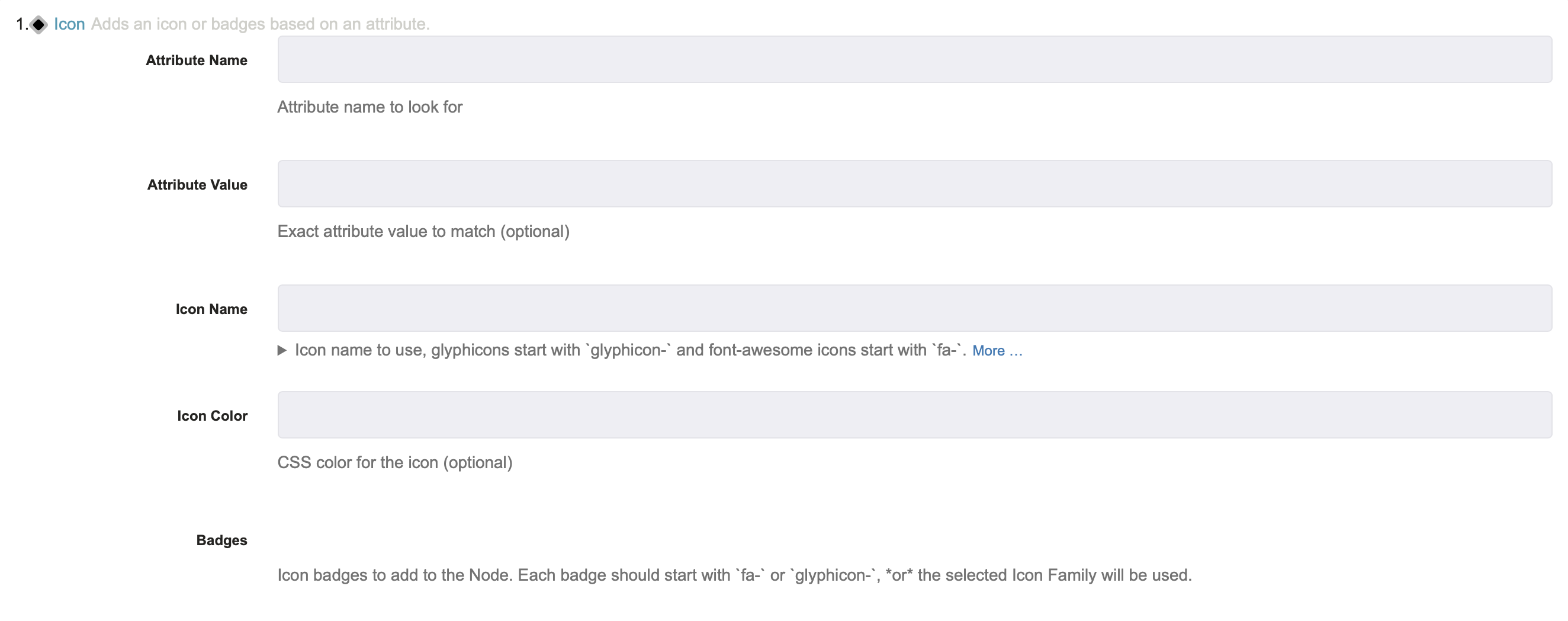
Attribute Name : This is where you specify the attribute name. Any node that has that attribute will have the icon applied to it.
Attribute Name : This is where you specify an exact attribute name. If there is an exact match then the icon will be added to that node/those nodes.
Icon Name : This is where you specify the icon that you want to apply to the nodes. In order to do so, you need to choose an icon from either the Font-Awesome icons or the Glyphicon icons. Depending which you choose, the name needs to start with "glyphicon-" or "fa-."
Health Checks (Commercial)
Our Enterprise customers also have access to a health check node enhancer. To learn more, please visit Health Checks.