
Upgrading Runners
Upgrading Runners
This document describes how to upgrade a Runner's Replicas to the latest version.
Since Runbook Automation Self-Hosted 5.16.0, a Runner is a logical entity composed of one or more Replicas — the actual agent processes deployed on hosts or containers. Upgrading a Runner means replacing its Replicas with Replicas running the newer agent version. This allows zero-downtime, rolling upgrades: a new Replica is brought online next to the existing one(s) before the old Replica is retired.
Runner Replicas Feature Availability
Runner Replicas are available in Runbook Automation Self-Hosted 5.16.0 and later. Rundeck/Runbook Automation 6.0+ enables rundeck.feature.runnerReplicas.enabled by default.
If you are on 5.x with the Replicas feature disabled, see Legacy Upgrade Procedure below.
Before You Begin
- Maintain availability: To keep the Runner available for tasks during the upgrade, run at least two Replicas (or have another Runner online with the exact same Tags). Because any Replica of a Runner can pick up its queued tasks, adding the new Replica before removing the old one results in no loss of availability.
- Version alignment warning is expected: While Replicas of a Runner temporarily run different agent versions during a rolling upgrade, the GUI displays a version-alignment warning. This is expected; it clears once all Replicas run the same version.
- Use the same invocation string: When starting an upgraded Replica on a VM, use the same invocation string as the previous Replica (for example, include any proxy-host settings).
- Know your Replica type: The upgrade procedure differs for Persistent vs. Ephemeral Replicas. Persistent (manual) Replicas are upgraded through the Add Replica workflow; Ephemeral Replicas are upgraded through your orchestration tooling (Kubernetes, auto-scaling groups, etc.).
Changes from Earlier Versions
When the Replicas feature is enabled (the default in 6.0+):
- The Download Runner option no longer appears in the Runner Actions menu.
- The Regenerate Credentials button is not available for Runners with persistent (manual) Replicas. Use the Add Replica workflow instead — each new Replica receives its own credentials, so the existing Replicas keep running while you upgrade.
If you are following an older upgrade guide that references those buttons, use the procedures on this page instead.
Upgrading Persistent Replicas (Virtual Machines / On-Host)
For Runners whose Replicas are installed directly on Linux or Windows hosts, upgrade by adding a new Replica at the latest version and then removing the old one.
- Navigate to the Runner Management page:
- System level: Click the System menu (gear icon in the upper-right) and select Runner Management.
- Project level: Navigate into the Project and select Runner Management from the left navbar.
- Click on the name of the Runner to upgrade to open its detail page.
- Open the Replicas tab. Note the Replica(s) currently registered, their version, and their hostname.
- Click Add Replica.
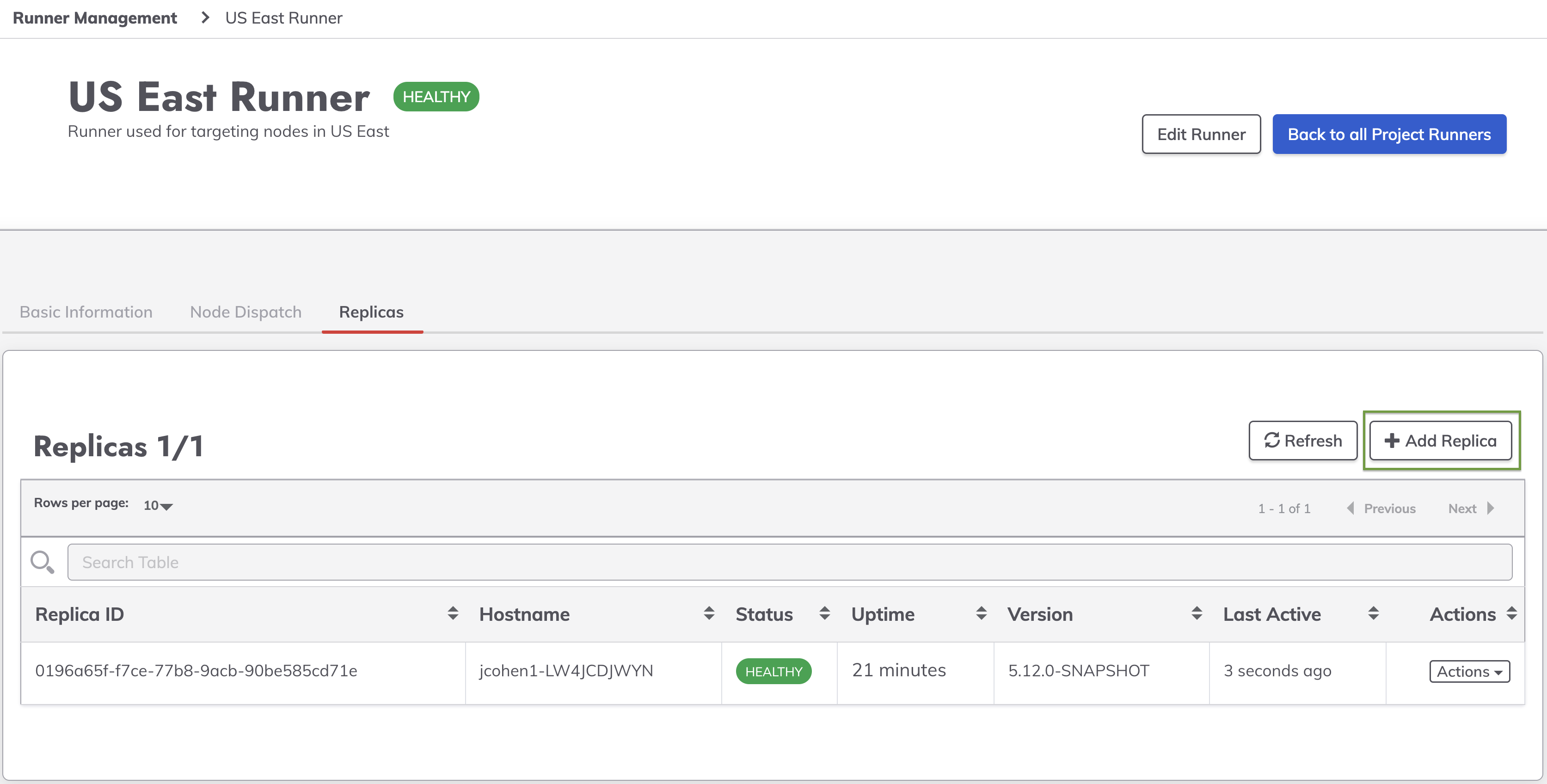
- A popup displays the download methods for the new Replica package at the latest version — such as a
curlcommand (Linux), anInvoke-WebRequestcommand (Windows), or a direct.jardownload.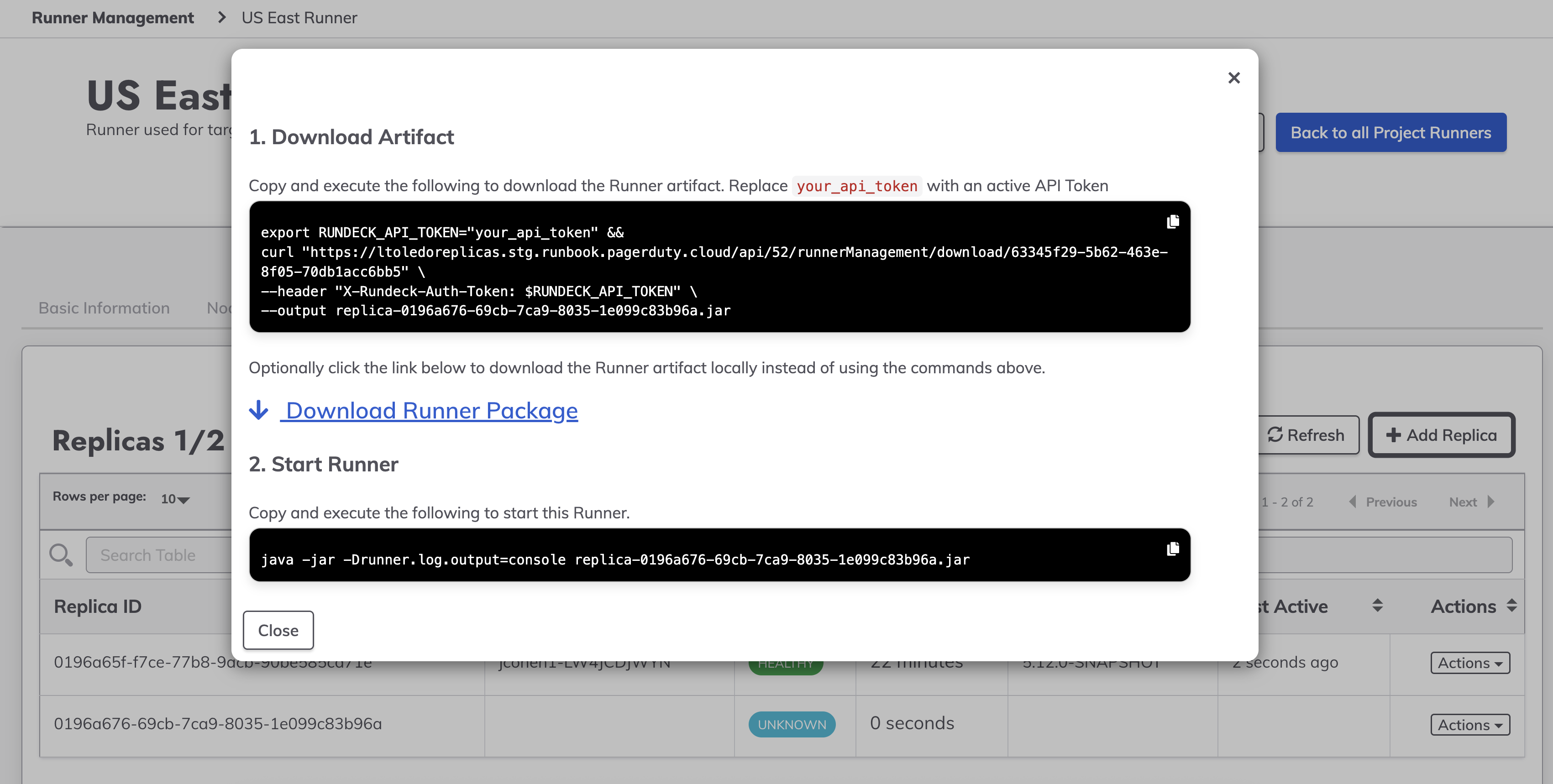
The
curl/Invoke-WebRequestcommands require an API Token. See User API Tokens for steps to create one. - On the target host (the same host as the existing Replica, or a new one), download the package using the provided command and start the new Replica:
java -jar runner-[replica-id].jarUse the same invocation string (Java options, proxy-host settings, service wrapper, etc.) as the existing Replica so behavior stays consistent.
- Back in the Replicas tab, verify the new Replica appears, is reporting a recent Last Check-in, and shows the new version.
- On the old Replica's host, stop the Java process (or service) for the old Replica.
- In the Replicas tab, open the Actions dropdown for the old Replica, click Delete, and confirm with Ok.
Repeat steps 4–9 for each remaining Replica of the Runner until all Replicas report the new version and the version-alignment warning clears.
- Retrieve the Runner ID of the Runner to upgrade by listing the Runners:
GET /api/41/runnerManagement/runners- The Runner ID is also visible on the Runner's detail page in the console.
- Create a new Replica for the Runner:
POST /api/55/runnerManagement/runner/[RUNNER-ID]/replicas- The response contains the new Replica's credentials and download token:
{
  "token": "xxxxxxxx-xxxx-xxxx-xxxx-xxxxxxxxxxxx",
  "runnerId": "xxxxxxxx-xxxx-xxxx-xxxx-xxxxxxxxxxxx",
  "replicaId": "xxxxxxxx-xxxx-xxxx-xxxx-xxxxxxxxxxxx",
  "downloadTk": "xxxxxxxx-xxxx-xxxx-xxxx-xxxxxxxxxxxx"
}
- Download the new Replica package using the
downloadTk:GET /api/41/runnerManagement/download/[downloadTk]- This downloads the new Replica
.jarfile at the latest version.
- Copy the
.jarto the target host and start the new Replica with the same invocation string as the existing Replica:java -jar runner-[replica-id].jar - Verify the new Replica is active and reports the new version by listing the Runner's Replicas:
GET /api/55/runnerManagement/runner/[RUNNER-ID]/replicas
- On the old Replica's host, stop the Java process for the old Replica.
- Delete the old Replica:
DELETE /api/55/runnerManagement/runner/[RUNNER-ID]/replica/[REPLICA-ID]
Repeat steps 2–7 for each remaining Replica. Project-level variants of these endpoints are available under /api/55/project/[PROJECT]/runnerManagement/... — see the API Reference.
In-Place Upgrade on a Single Host
If you must reuse the same host and cannot run two Replicas side-by-side, the order changes slightly: click Add Replica and download the new package first, then stop the old Replica's process, start the new Replica, and finally delete the old Replica entry from the Replicas tab. The Runner is unavailable between stopping the old Replica and the new Replica's first check-in, so ensure another Runner with the same Tags is online to cover tasks during that window.
Upgrading Ephemeral Replicas (Docker, Kubernetes, Auto-Scaling Groups)
When a Runner is configured to Treat Replicas as Ephemeral, Replicas cannot be added or removed through the GUI or API. Instead, upgrade the Replicas through the orchestration tooling by updating the image (or artifact) version and rolling the deployment. The Runner's credentials do not change, and Replicas that stop checking in are automatically removed from the console after 10 minutes.
- Update the image tag to the target version:
docker pull rundeckpro/runner:[VERSION] - Recreate the container(s) with the new image, reusing the same connection parameters as before — either the environment variables (
RUNNER_RUNDECK_SERVER_TOKEN,RUNNER_RUNDECK_SERVER_URL,RUNNER_RUNDECK_CLIENT_ID) or the/app/.rdrunner-credsvolume mount. If usingdocker-compose, update theimage:tag and rundocker compose up -d. - In the console, open the Runner's Replicas tab (System menu → Runner Management → click the Runner name) and verify the new Replica(s) check in with the new version. Old Replicas disappear automatically after 10 minutes.
For full container deployment details, see Deploying Runners in Containers.
- Update the Runner Deployment to the new image version:or update the
kubectl set image deployment/[runner-deployment] runner=rundeckpro/runner:[VERSION]image:tag in your manifest / Helm values and apply. - Kubernetes performs a rolling update, starting Replica pods on the new version before terminating the old ones. The number of pod replicas in the Deployment determines the number of Runner Replicas.
- In the console, open the Runner's Replicas tab (System menu → Runner Management → click the Runner name) and verify the new pods check in with the new version. Terminated pods disappear from the list automatically after 10 minutes.
Legacy Upgrade Procedure (Replicas Feature Disabled)
On Self-Hosted 5.x installations where rundeck.feature.runnerReplicas.enabled is not enabled, Runners are single-instance and are upgraded by regenerating credentials and reinstalling:
- Navigate to the System menu → Runner Management page and click on the name of the Runner to upgrade.
- On the existing Runner's host, stop the Java process for the current Runner.
This makes the Runner unavailable for tasks until the new version is started.
- On the Runner's detail page (in view mode), click Regenerate Credentials and confirm. This immediately invalidates the previous credentials.
- Installation instructions appear with the new Runner Token, Download Token, and download commands. Download the new
.jarpackage. - Copy the new
.jarto the Runner's host, placing it in the same directory as the existing Runner. - Start the new Runner with the same invocation string as before:
java -jar [your-runner-id].jar
The equivalent API flow is: POST /api/42/runnerManagement/runner/[RUNNER-ID]/regenerateCreds to obtain a downloadTk, then GET /api/41/runnerManagement/download/[downloadTk] to download the package.
Regenerating Credentials Invalidates Existing Replicas
Regenerating credentials immediately invalidates the current credentials — any running instance using the old credentials can no longer connect until it is reinstalled with the new credentials. With the Replicas feature enabled, Regenerate Credentials is only available for Ephemeral Runners; for persistent Runners, use the Add Replica workflow instead.